AI-IDE User Manual
Edit Markdown and code on the fly on iPhone and iPad, and collaborate with the AI model of your choice — all without ever leaving the document itself.
What is AI-IDE
AI-IDE is an integrated editor designed for iPhone and iPad that combines local file editing with large language model (LLM) collaboration.
- File editing
- Syntax highlighting for 10 languages, line numbers, auto-save, find & replace
- AI collaboration
- Let the AI read and write files in your workspace from a chat window
- BYOK
- Bring your own API key — connect to OpenAI / Anthropic / Gemini / DeepSeek / OpenRouter / Groq / and more
- Safe & controlled
- Every AI change is shown as a Diff card; nothing is written to disk until you Approve
- Cross-device UI
- Three-column Split View on iPad / tabbed layout on iPhone
- Trilingual UI
- Traditional Chinese / Simplified Chinese / English
1. Getting Started
On first launch, the app guides you to pick a workspace. Tap "Choose Workspace" and select any folder you'd like the app to work inside from the iOS Files app (iCloud Drive / on-device / third-party cloud all work).
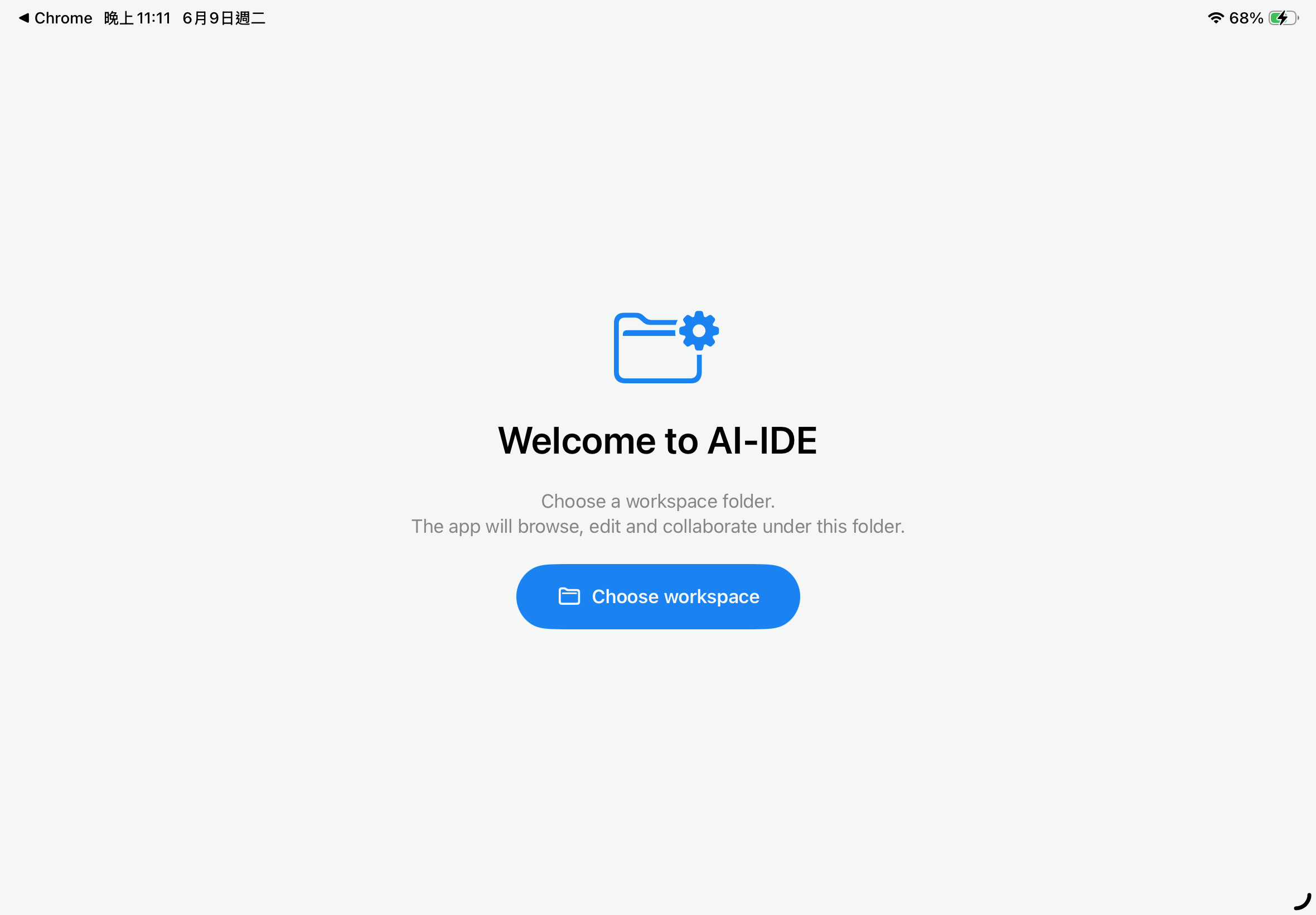
AI-IDE) so that your iPhone and iPad can access the same content.
2. Workspaces
2.1 Choosing a folder
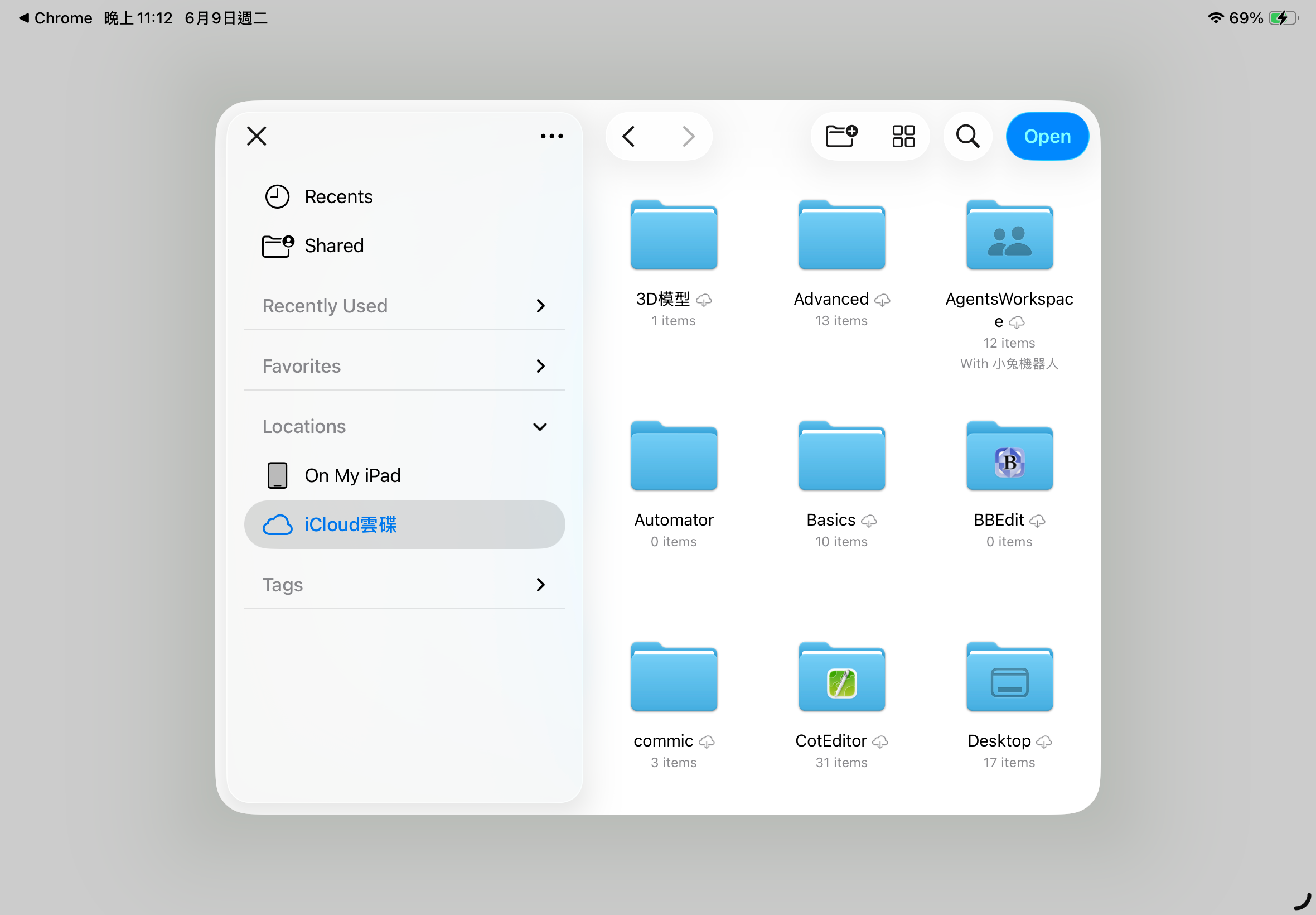
Tapping "Choose Workspace" brings up the iOS system folder picker. Any location visible in the Files app can be chosen (including connected Google Drive, Dropbox, etc.).
2.2 Multiple workspaces
Workspaces you've opened are kept in a "Recents" list and can be switched at any time. The top of the Files tab shows a home icon + the workspace name; the ⋯ menu at the top-right opens the switcher.
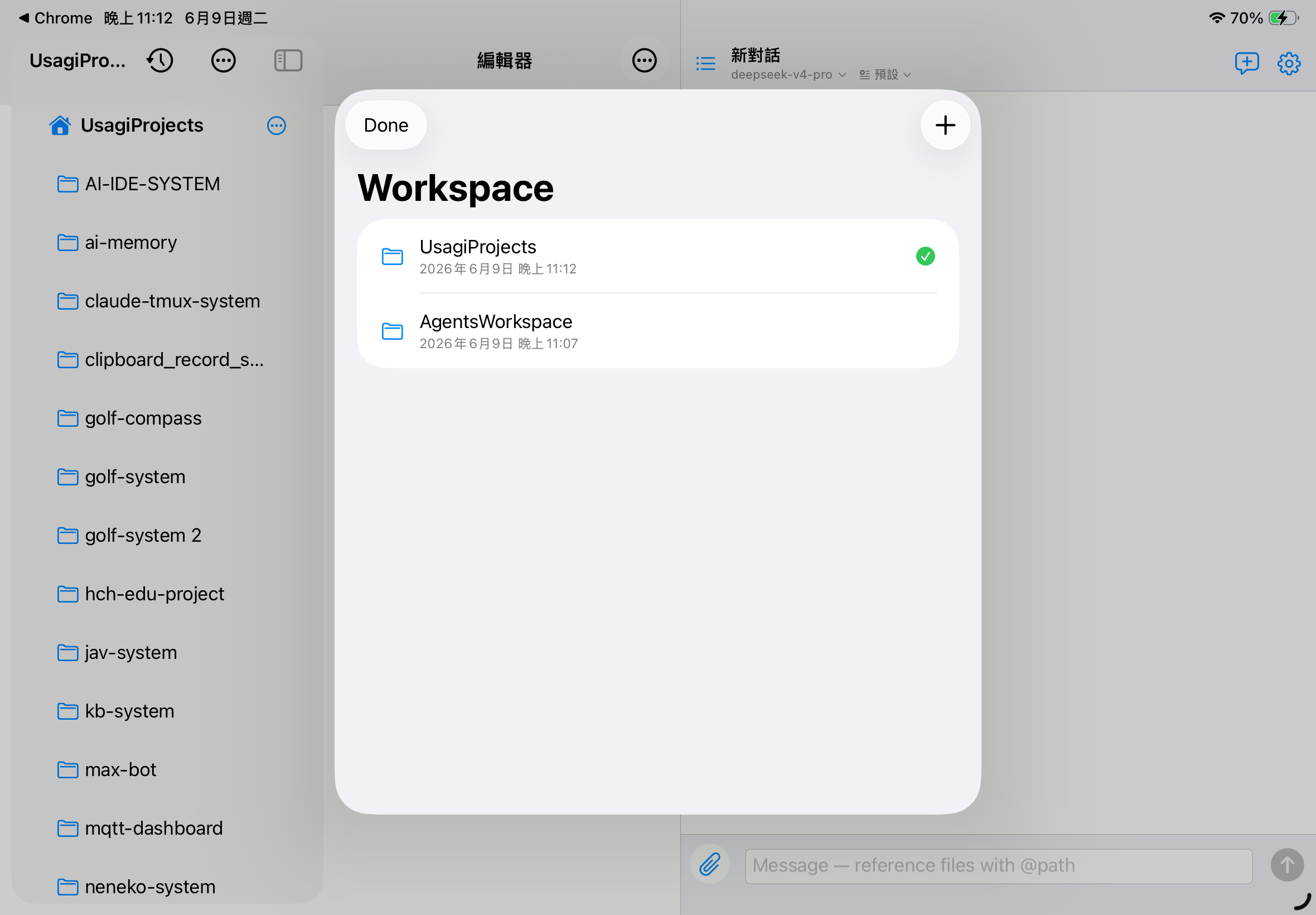
- Swipe left on a workspace item to delete or pin it
- Pinned items always stay at the top
- The "+" at the top-right adds a new workspace any time
3. File Management
3.1 Browsing files
The left side of the Files tab shows the workspace as a file tree. Tap a folder to expand/collapse; tap a file to open it in the editor.
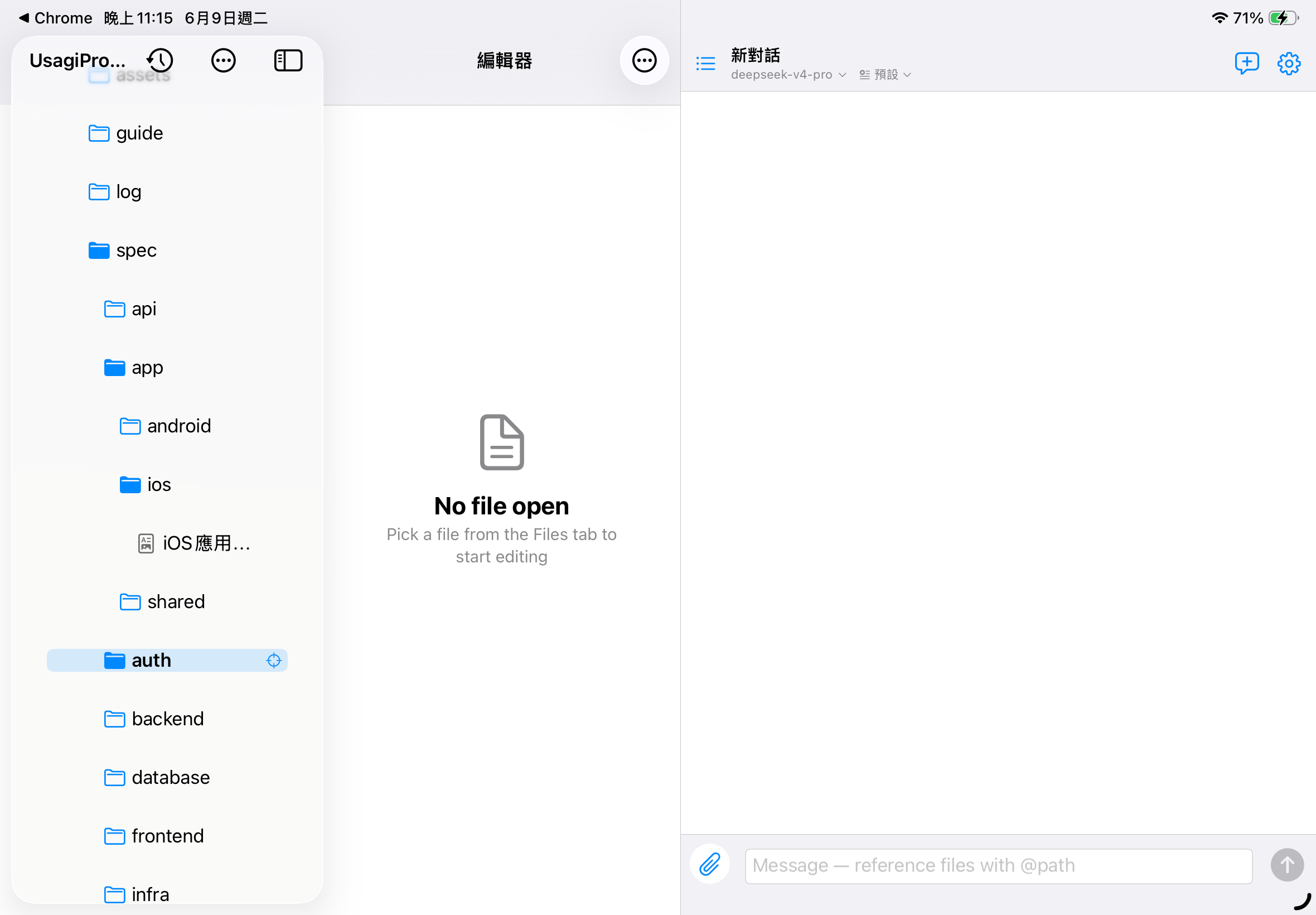
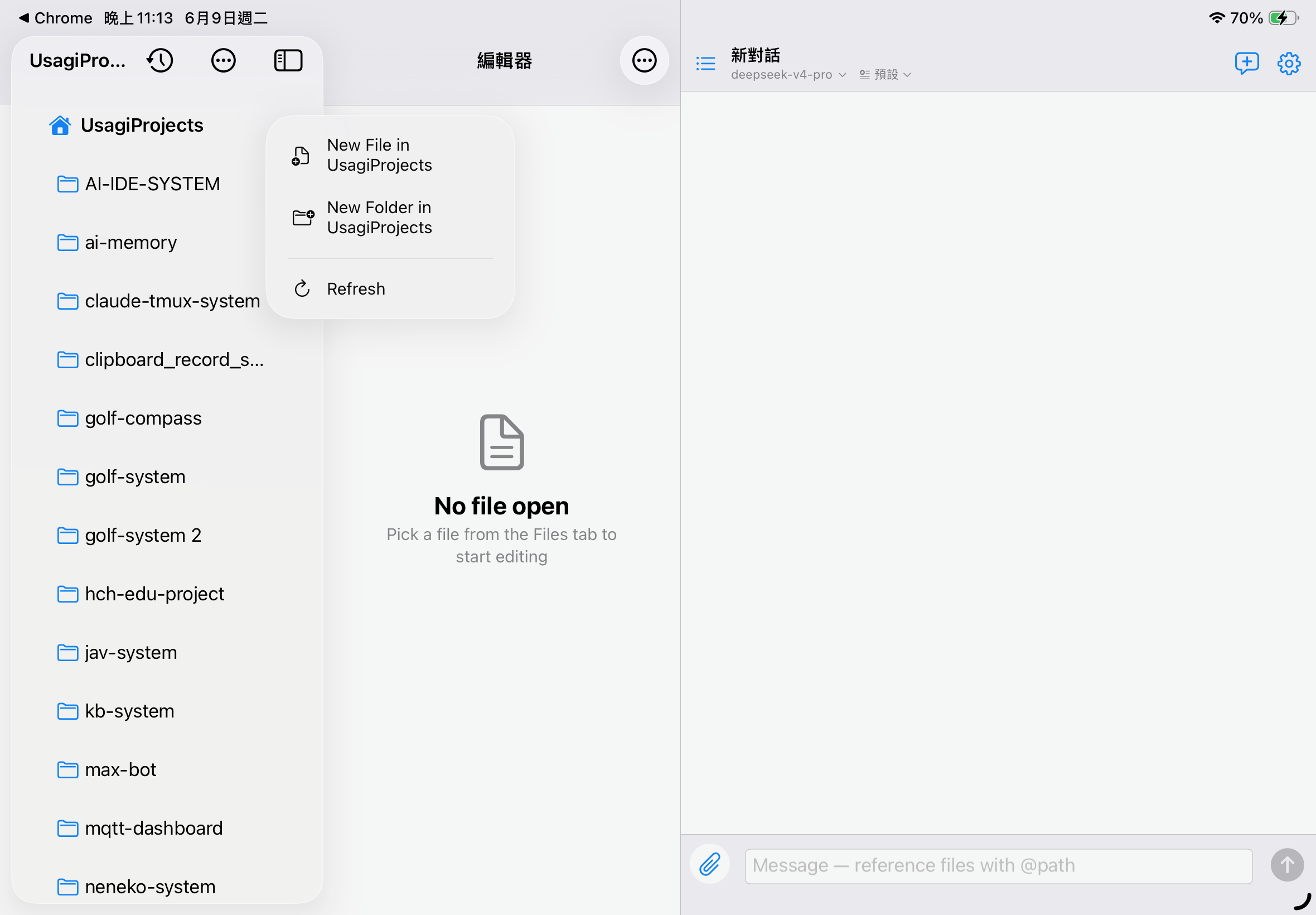
3.2 New file / folder
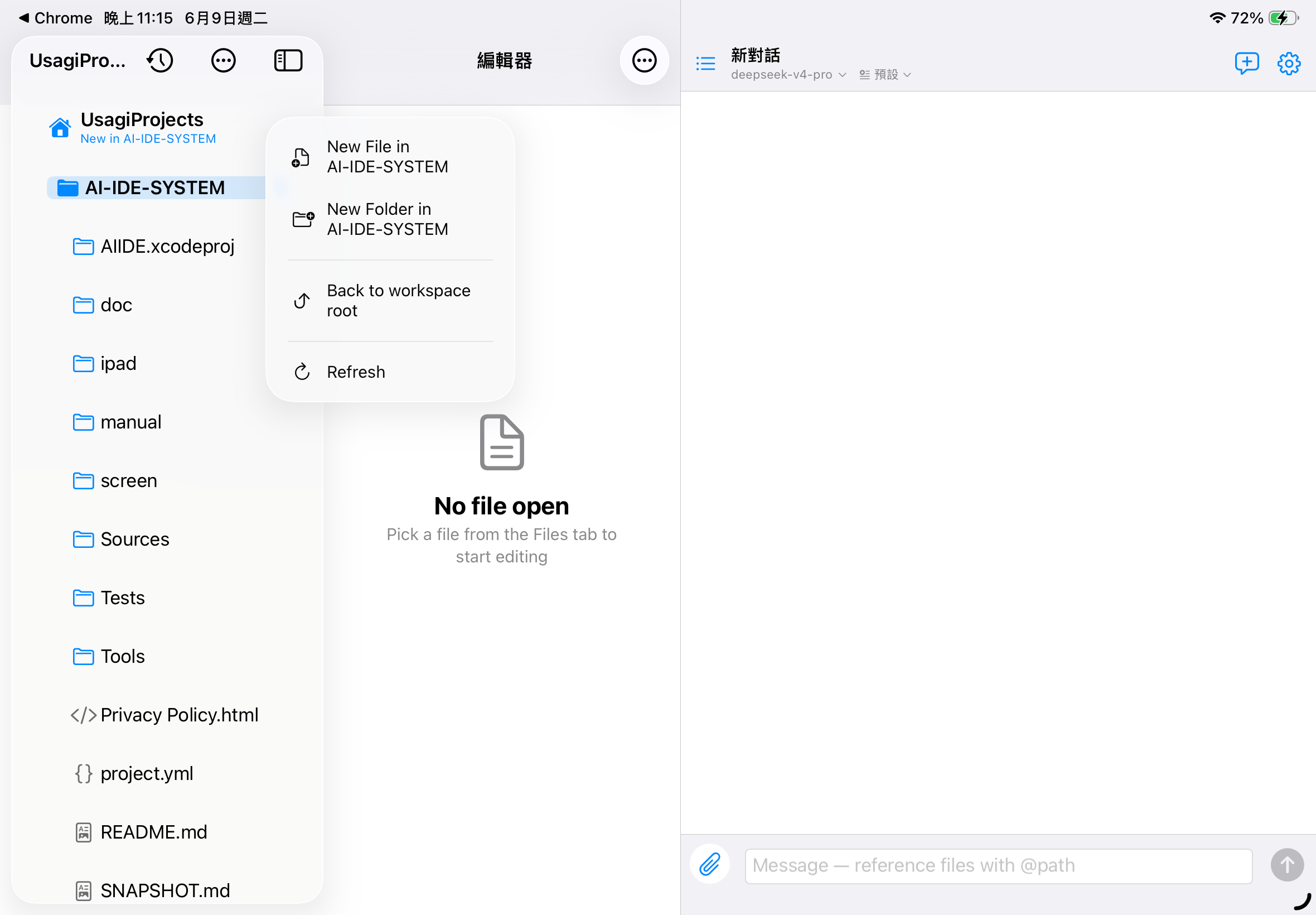
- Tap the ⋯ menu on the right of the home row (the row showing the workspace name)
- Choose "New File" or "New Folder"
- Enter a name → Create
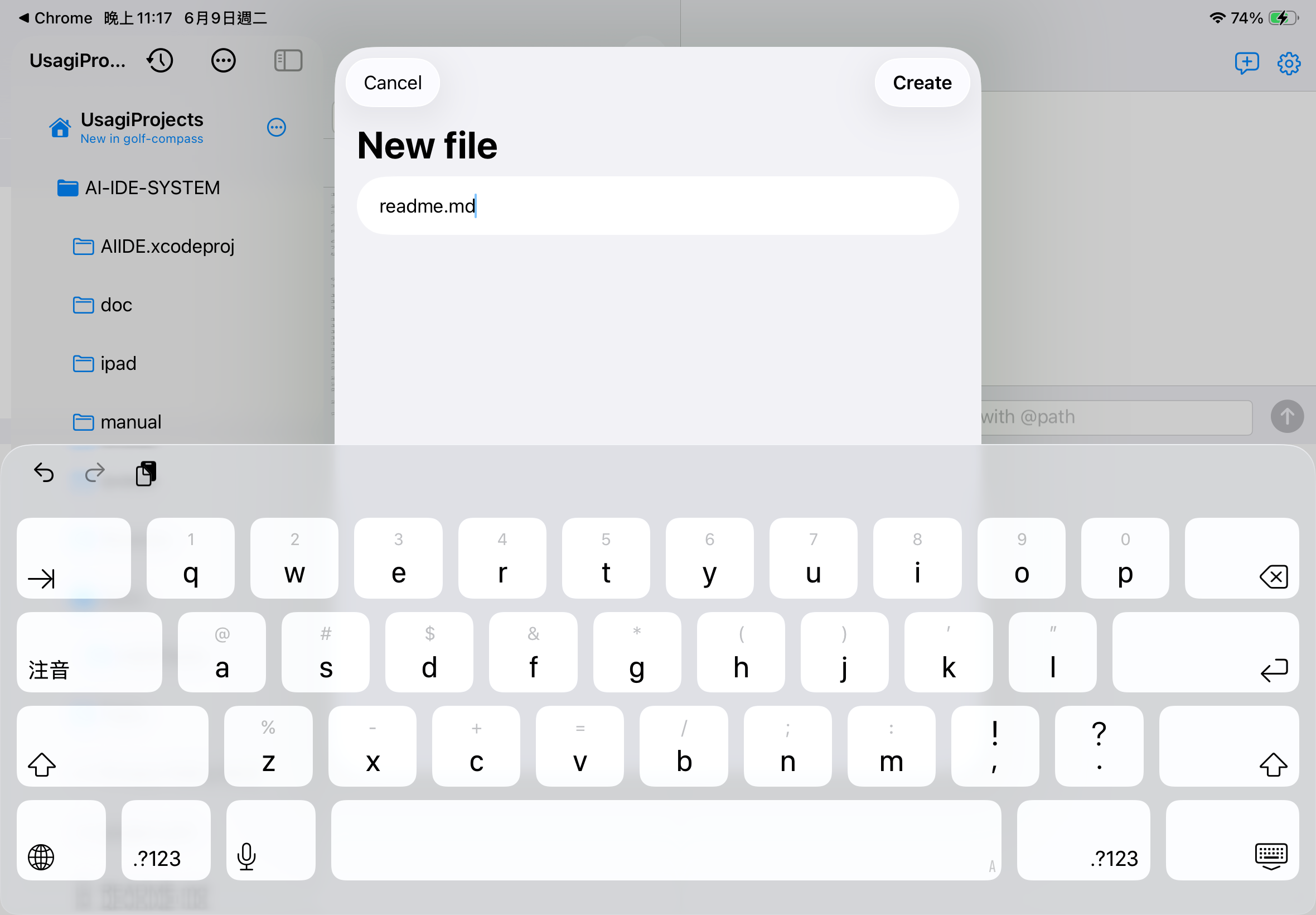
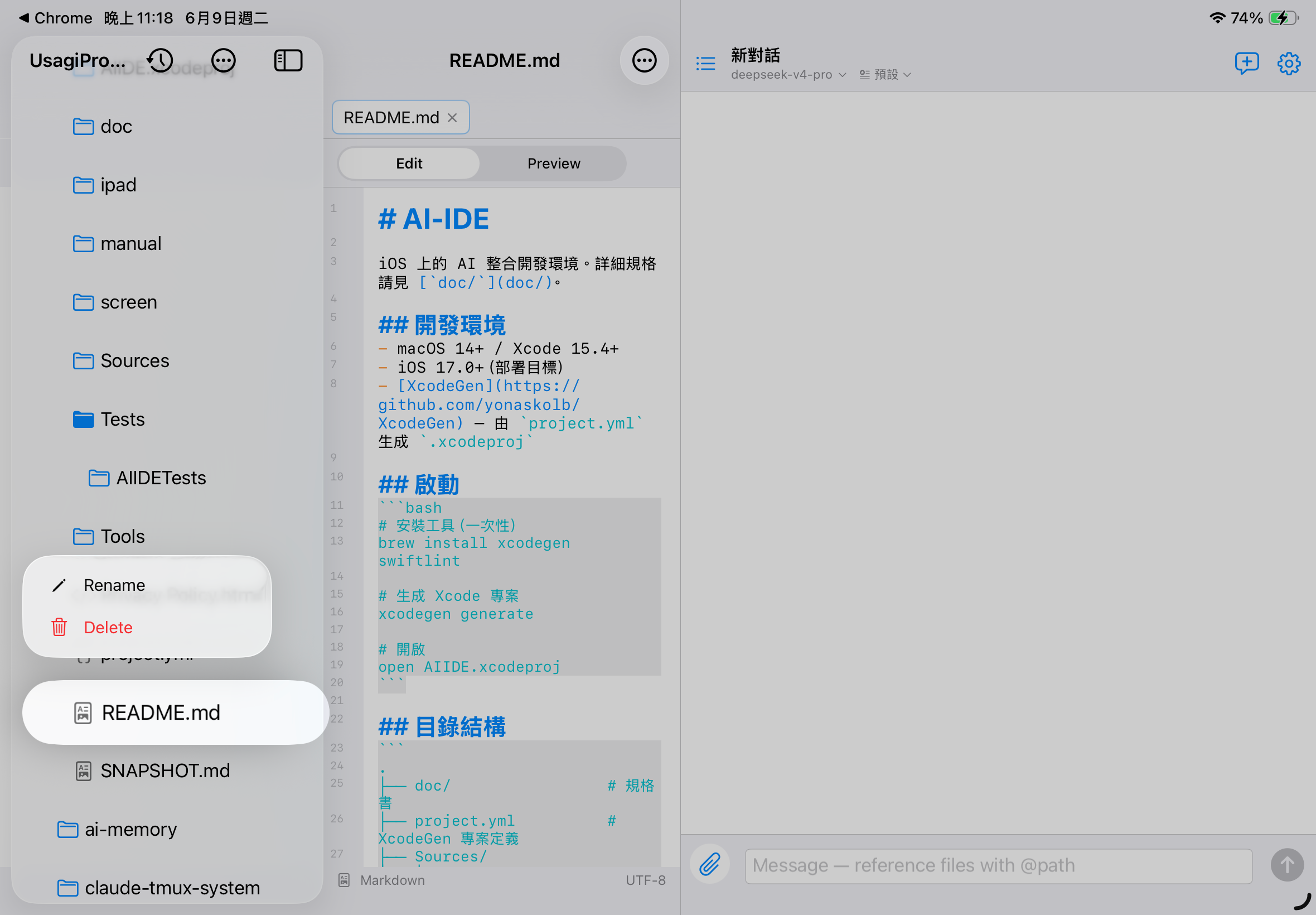
3.3 Rename / delete
Long-press any file or folder to rename or delete it from the context menu.
.aiide/snapshots/.
4. Editor
4.1 Syntax highlighting
The editor highlights 10 languages: Markdown / Swift / Python / JavaScript / TypeScript / JSON / YAML / HTML / CSS / Shell. For Markdown it also sizes headings by the number of # marks.
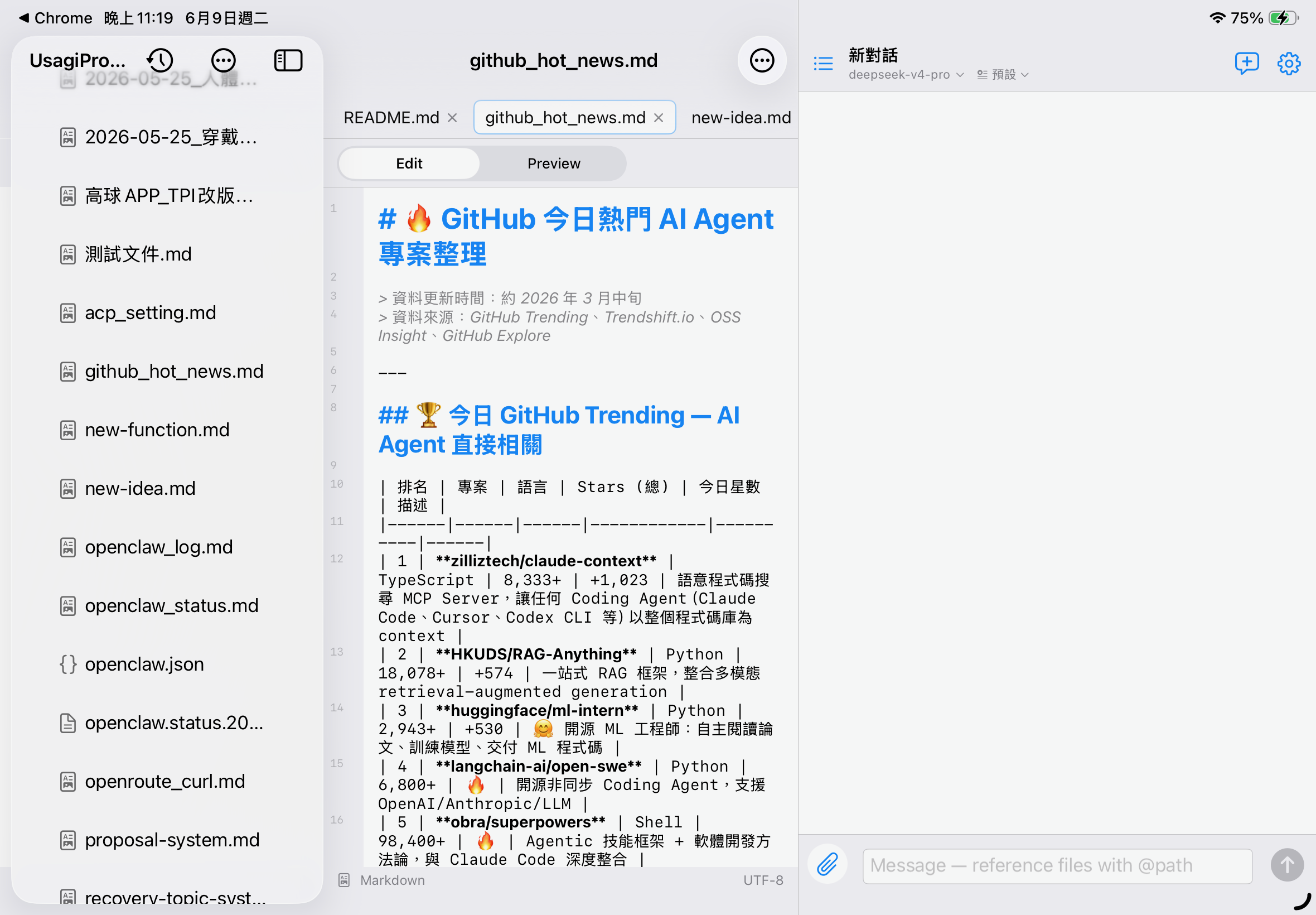
4.2 Multiple tabs
Open several files at once and switch with the top tab bar. An orange dot means "unsaved changes"; X closes the tab.
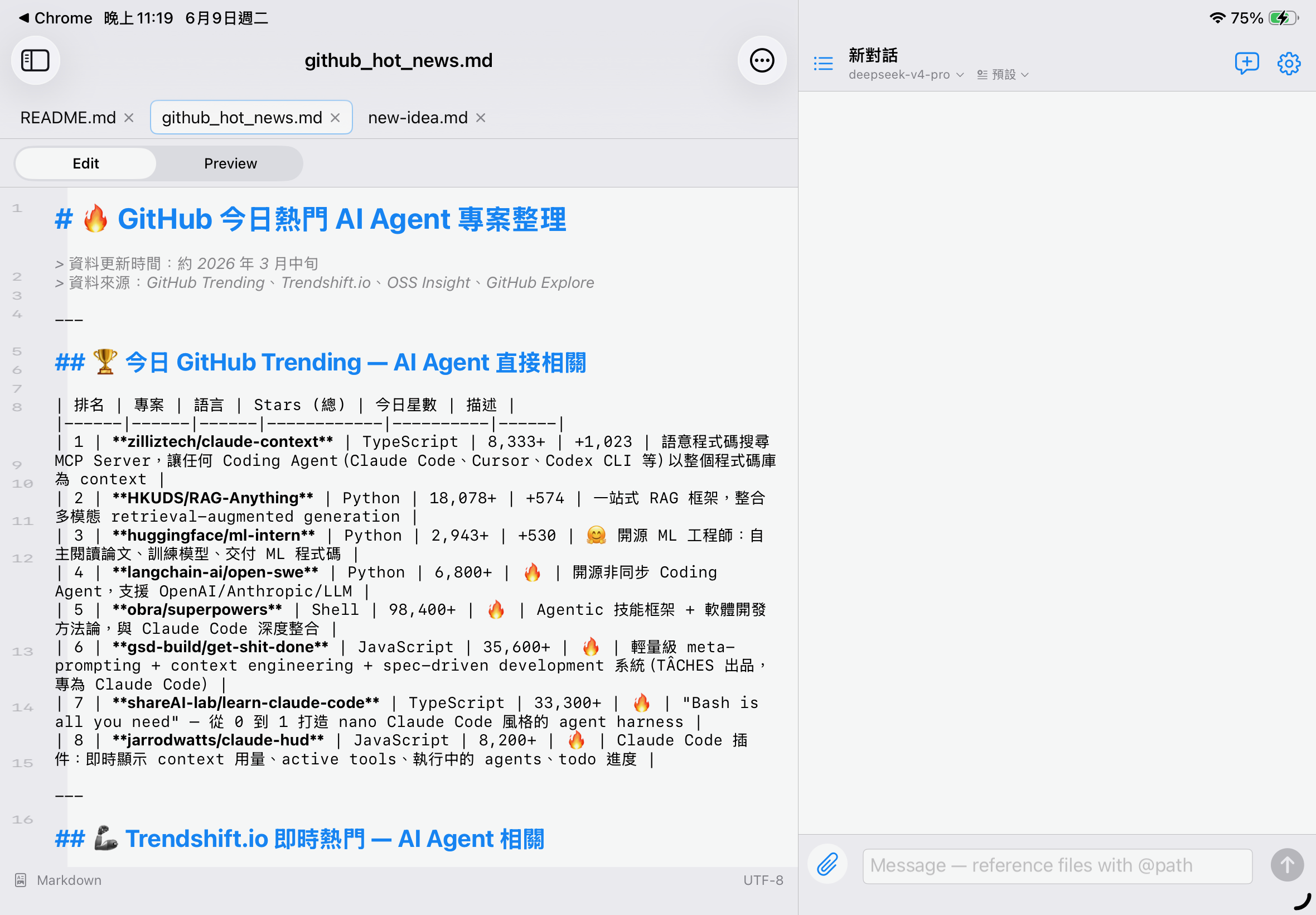
4.3 Find & replace
Top-right ⋯ menu → "Find & Replace". Enter the search term and the replacement, then tap "Replace All".
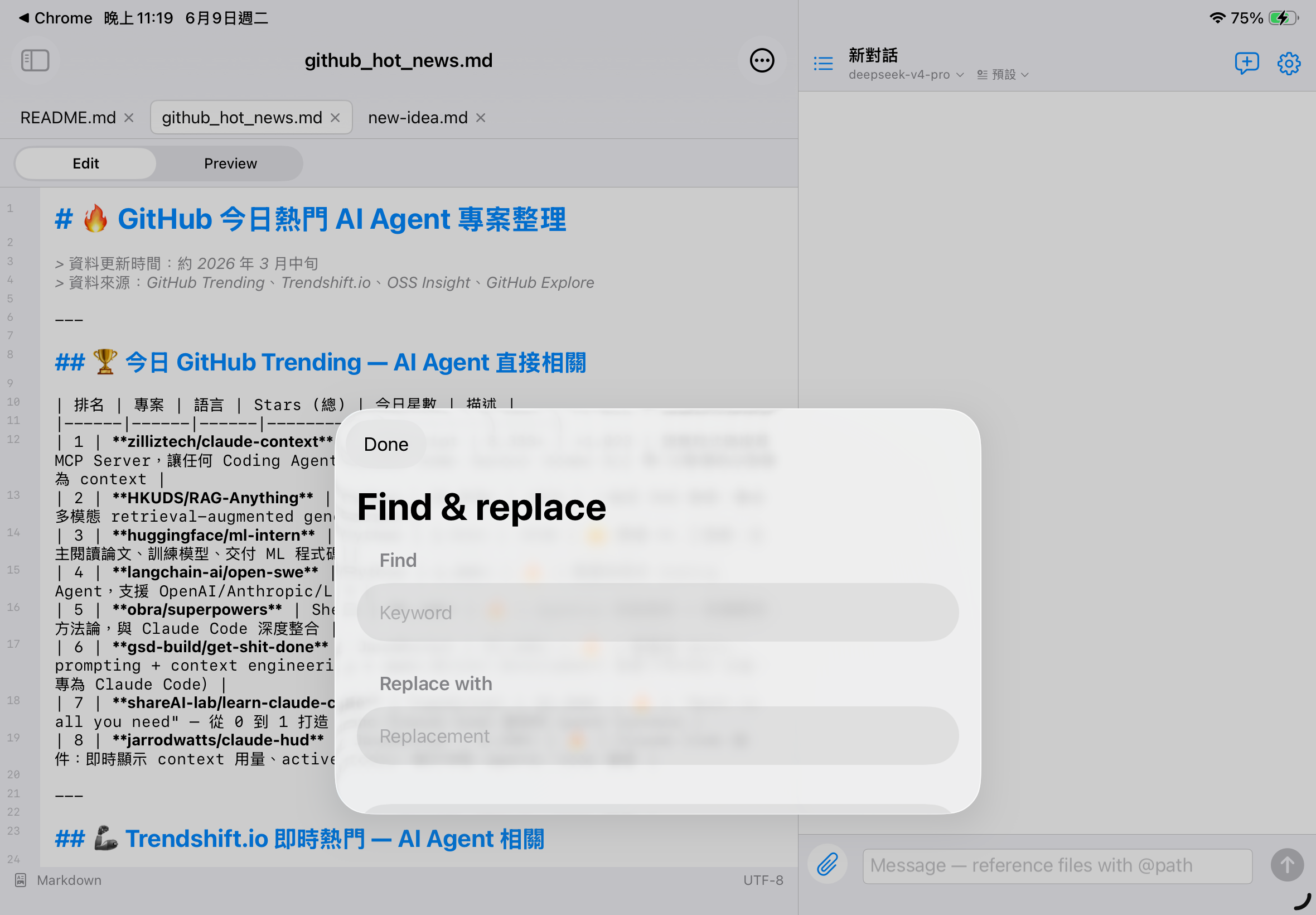
4.4 Dismissing the keyboard
On iPhone the keyboard covers the bottom tab bar. Three ways to dismiss it:
- The "Done" toolbar above the keyboard — one tap to dismiss
- Tap the empty area of the tab bar above
- Tap the status bar (the Markdown / UTF-8 row) below
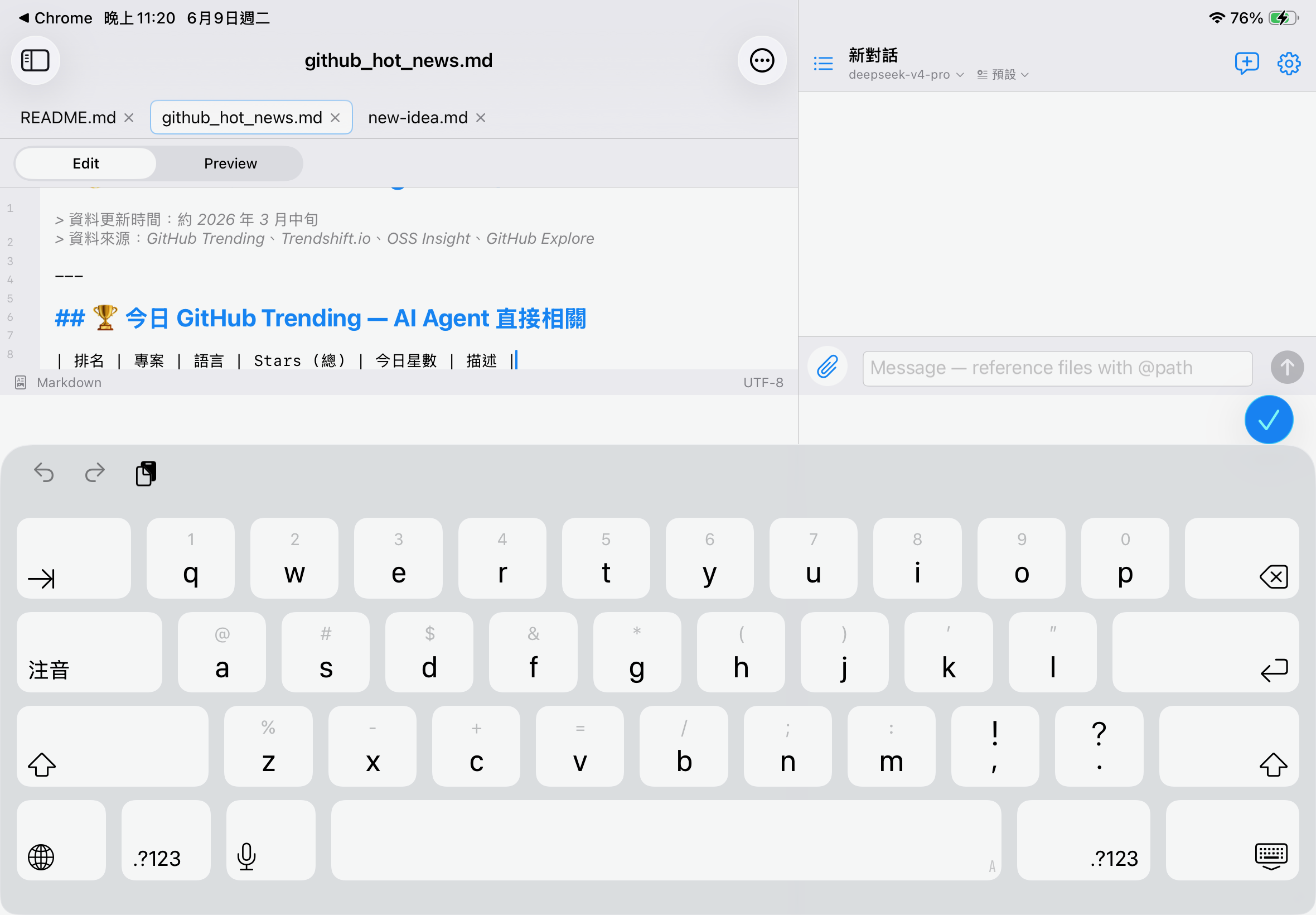
4.5 Status bar
The editor's bottom status bar shows: language type, read-only marker, unsaved marker, external-file marker, and file encoding.
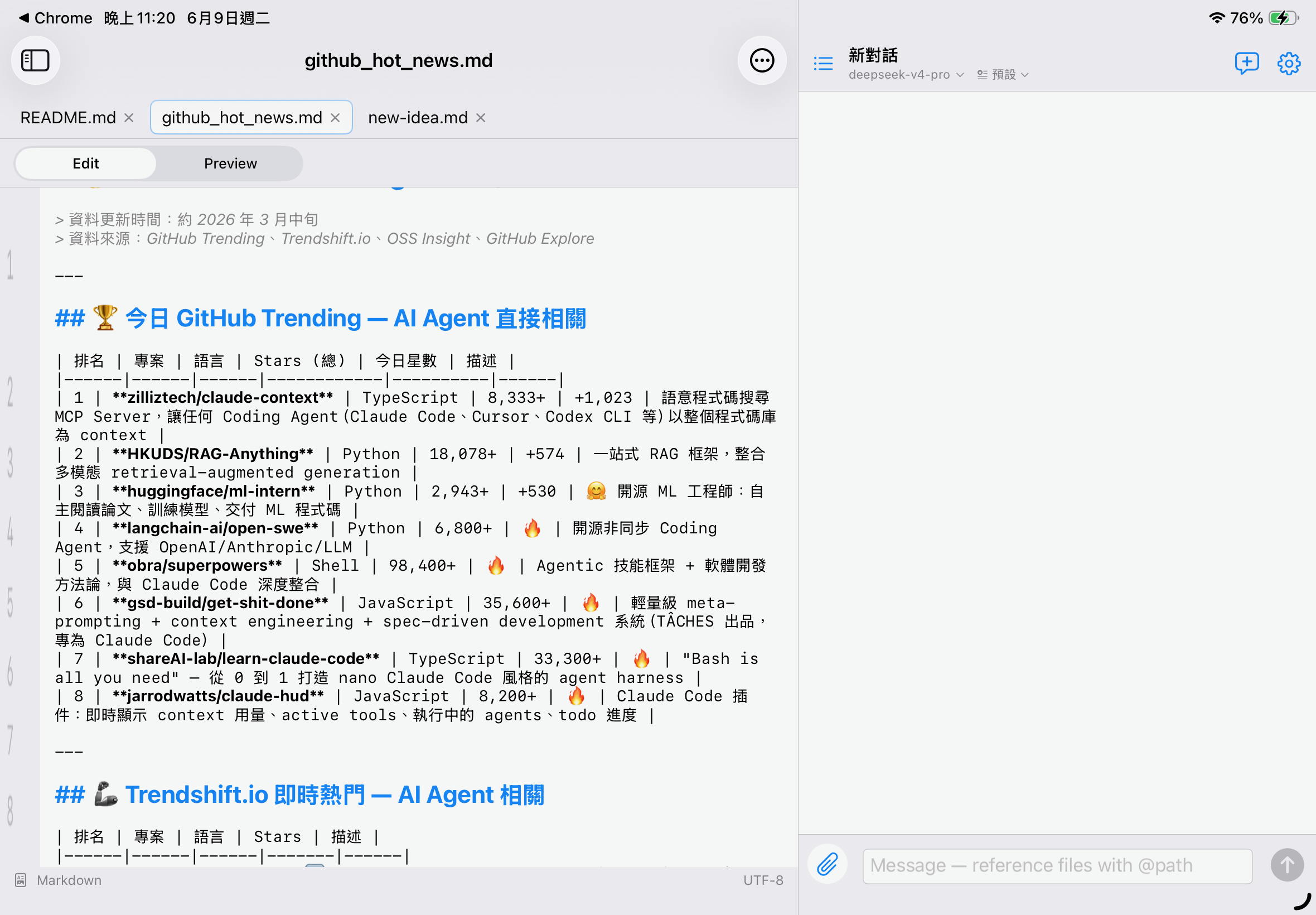
4.6 Editing external files
A file opened via "Open With → AI-IDE" from the Files app shows an "External" marker. Saving writes back to the original location (it is not copied into the workspace).
4.7 Markdown preview
When a Markdown file (.md / .markdown) is open, an Edit / Preview toggle appears at the top-right of the editor. Switching to Preview renders the Markdown as laid-out HTML (headings, lists, quotes, code blocks, tables, rules, etc.); switching back to Edit keeps the original (raw) text.
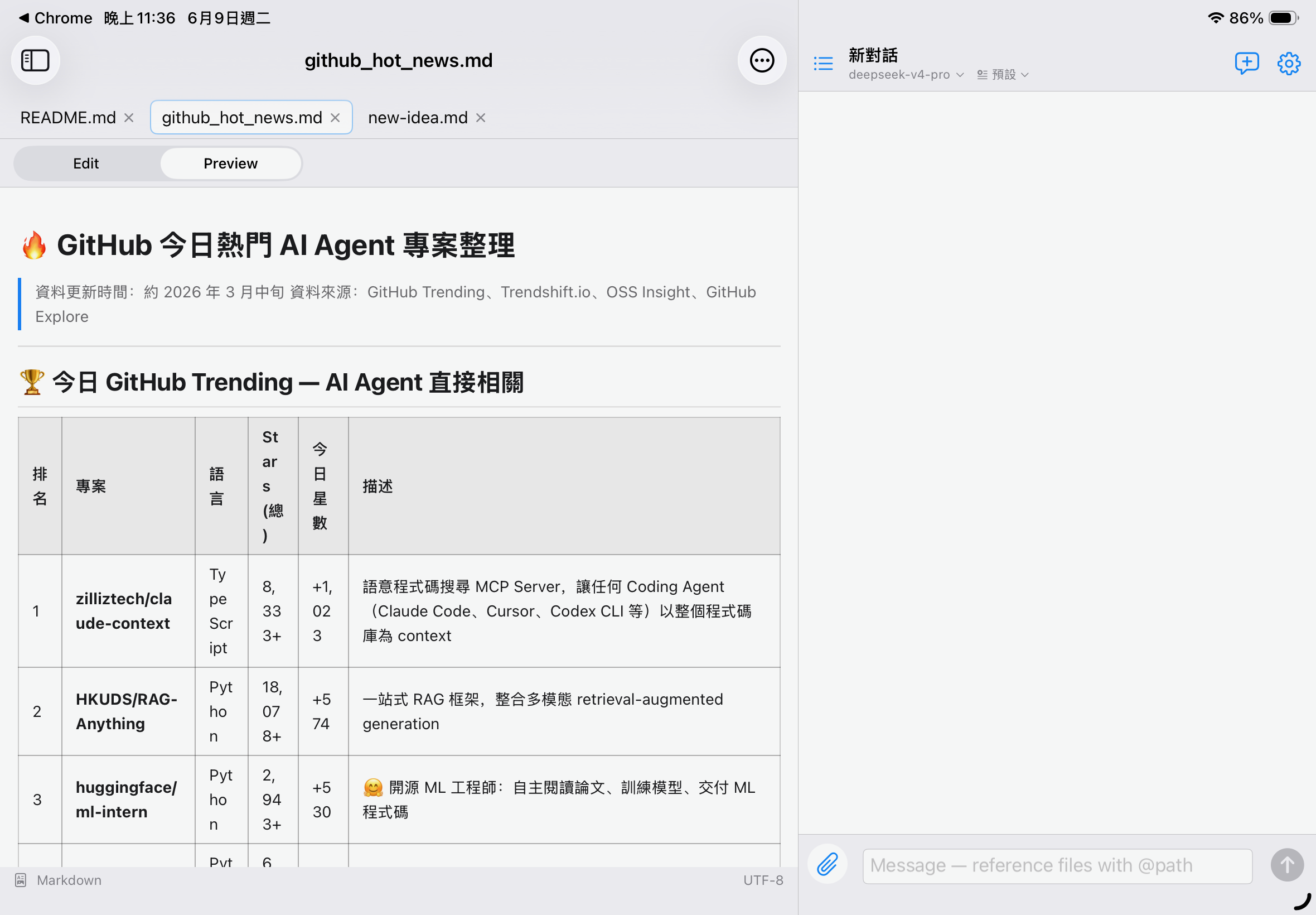
- The preview is rendered offline, runs no JavaScript, and fetches no external resources (images show as placeholder boxes) — for safety and privacy
- Preview is read-only; switch back to Edit mode to make changes
- Non-Markdown files don't show the toggle
5. LLM Provider Setup
AI Chat needs at least one LLM provider configured (with an API key) before it can be used, so it's best to set this up first.
5.1 Provider list
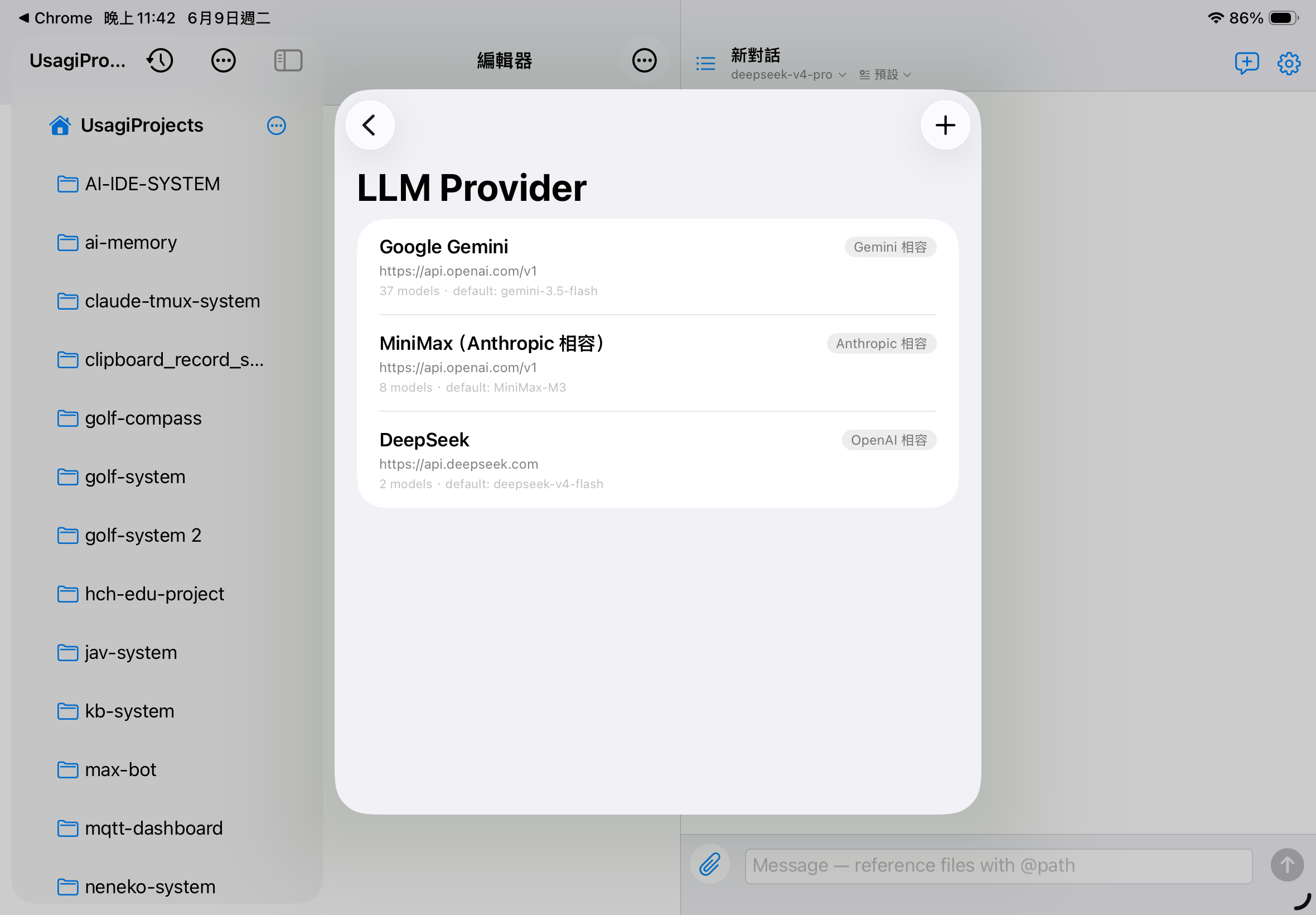
5.2 One-tap preset templates
When adding a provider you can pick a common endpoint from "Quick setup from a template", which auto-fills the name, type, and Base URL:
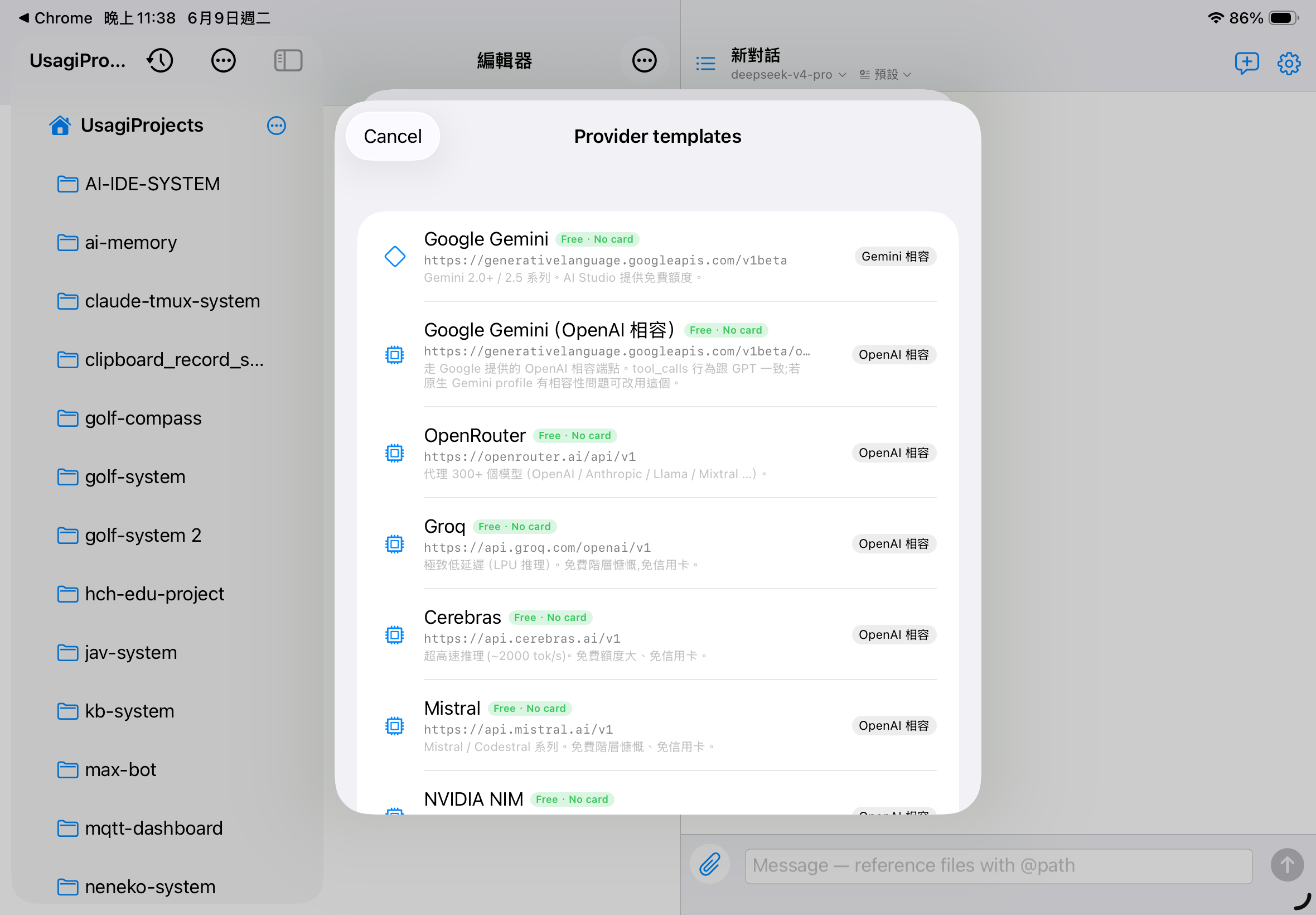
- OpenAI / Anthropic / Google Gemini (official)
- DeepSeek / OpenRouter / Groq / Cerebras / Mistral / NVIDIA NIM / Together AI (OpenAI-compatible)
- MiniMax (Anthropic-compatible) / Moonshot Kimi / Qwen
- Ollama (local)
5.3 Full editor
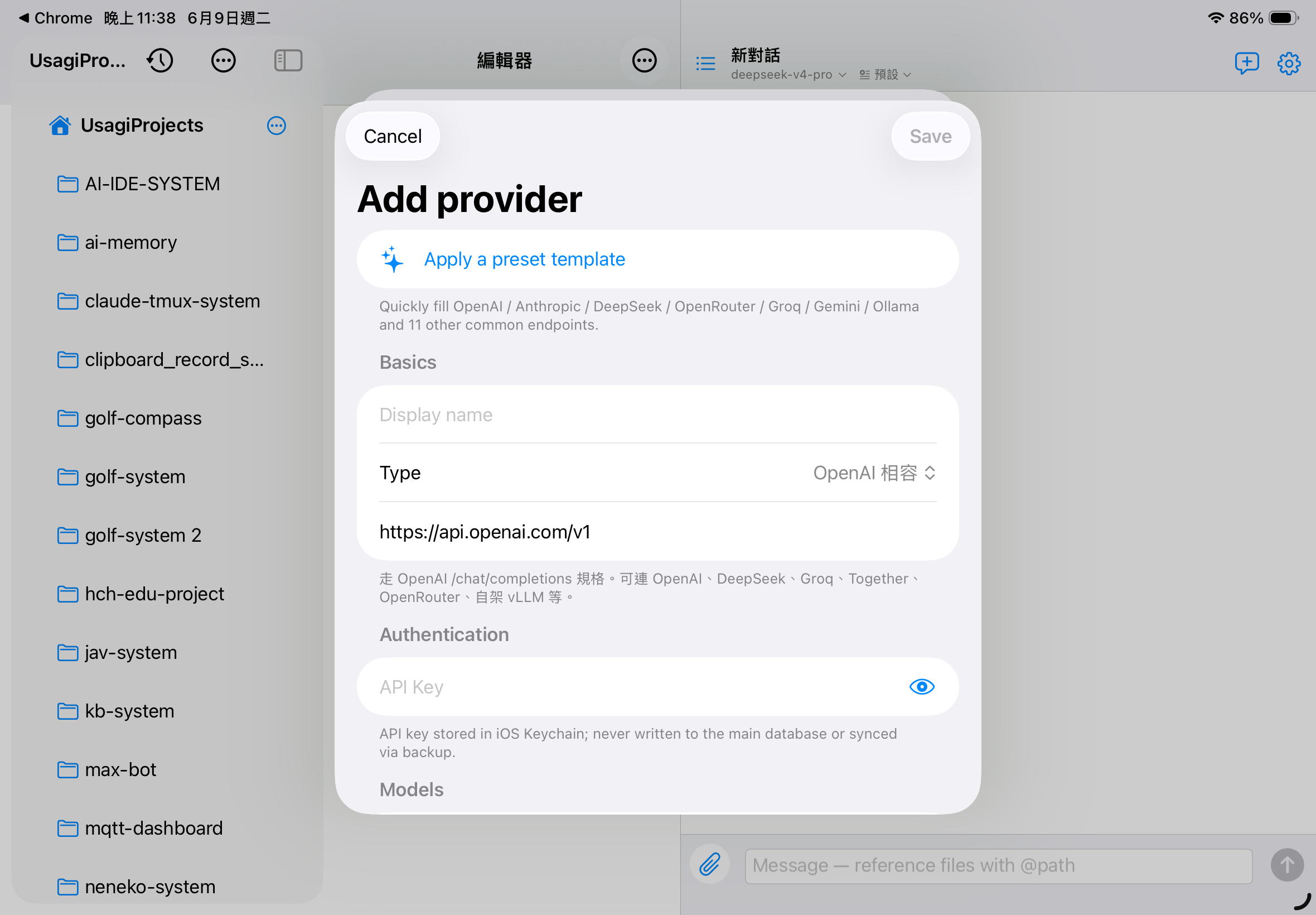
- Type
- OpenAI-compatible / Anthropic-compatible / Gemini-compatible / Ollama
- Base URL
- The root URL of the API endpoint
- API Key
- Stored in the iOS Keychain, excluded from backups
- Fetch model list from provider
- Automatically retrieves the endpoint's available models
- Disable tool calling
- Turn off for compatible endpoints that don't support tools
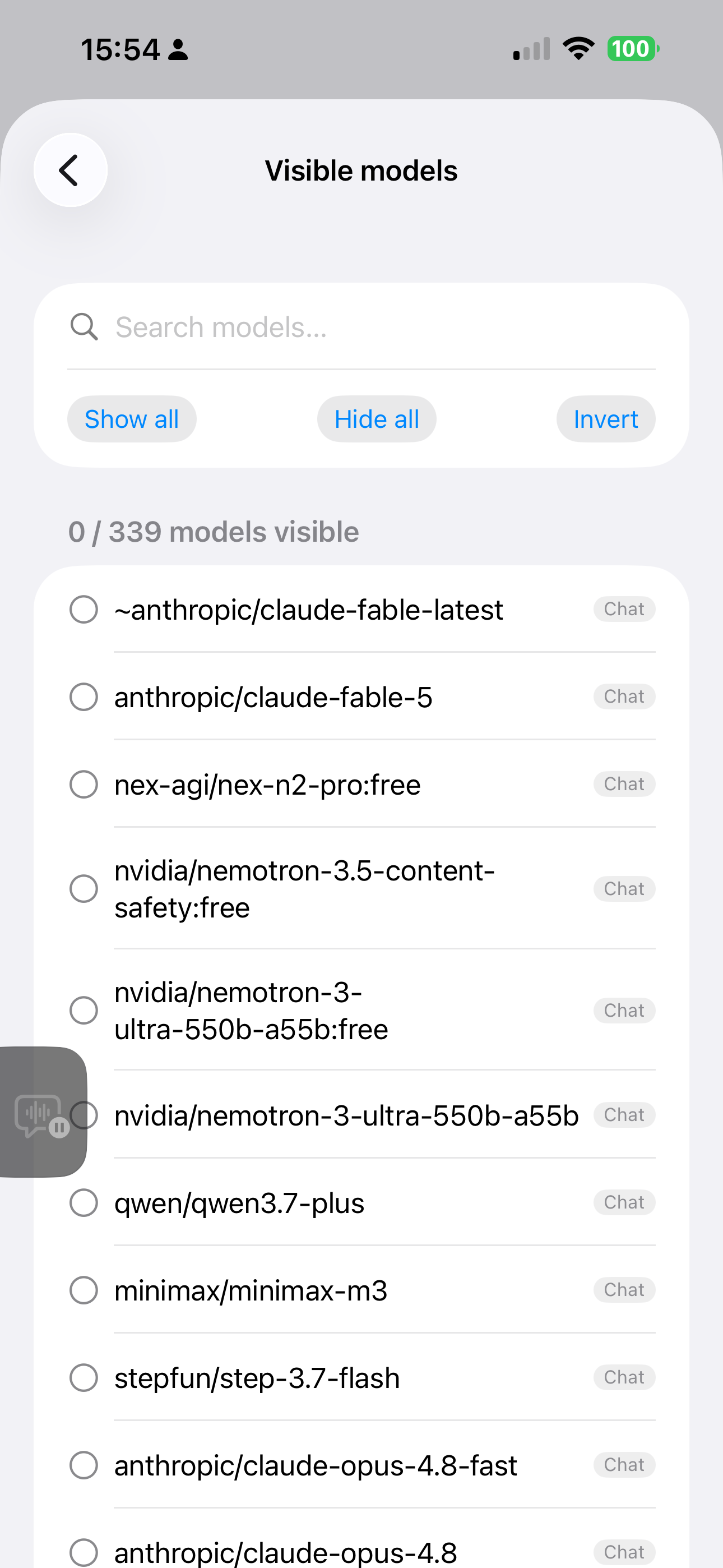
5.4 Filtering visible models
For endpoints with 300+ models like OpenRouter, use "Filter visible models" to check the ones you want shown in the chat picker:
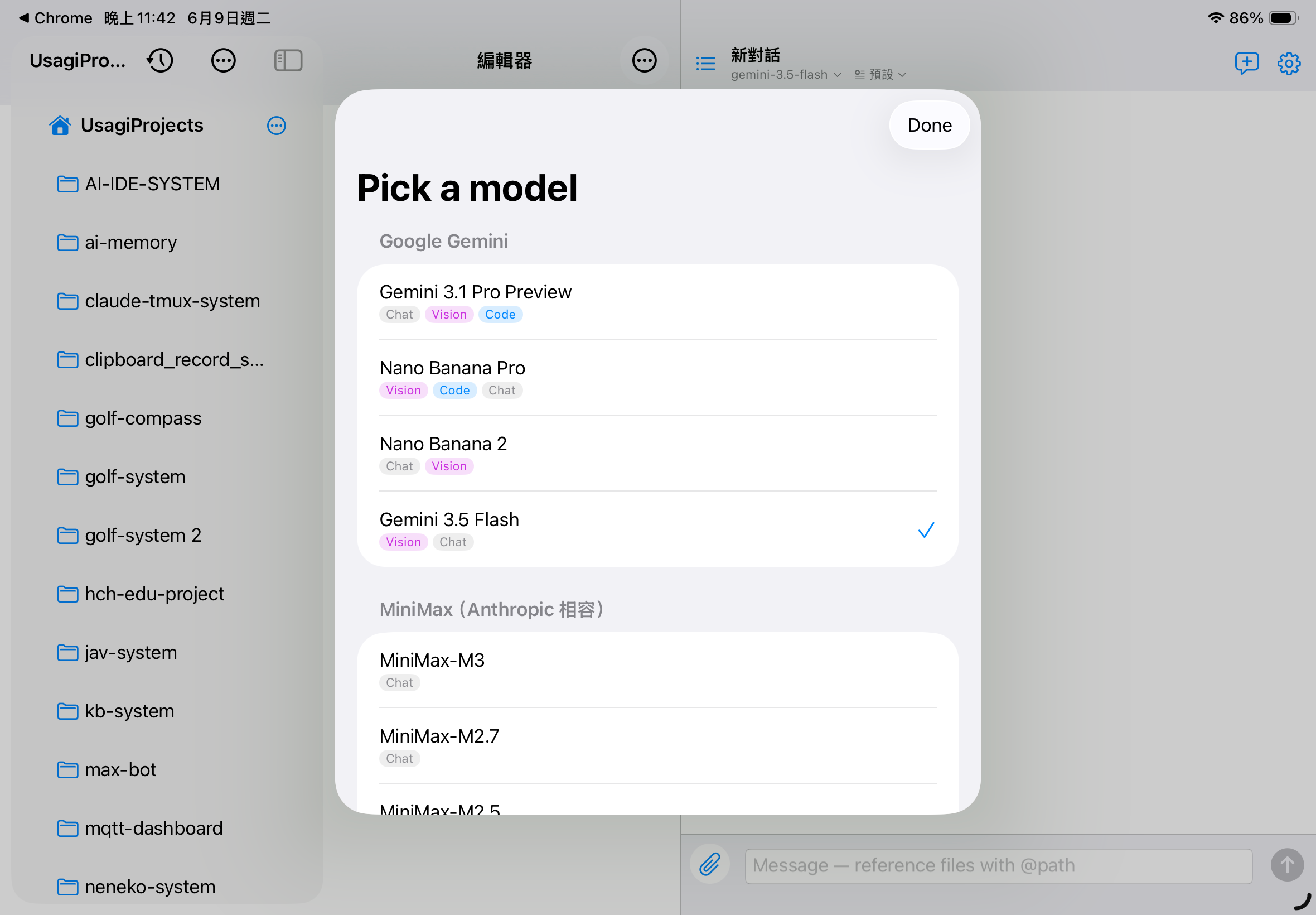
5.5 Switching models mid-conversation
6. AI Chat
6.1 Interface overview
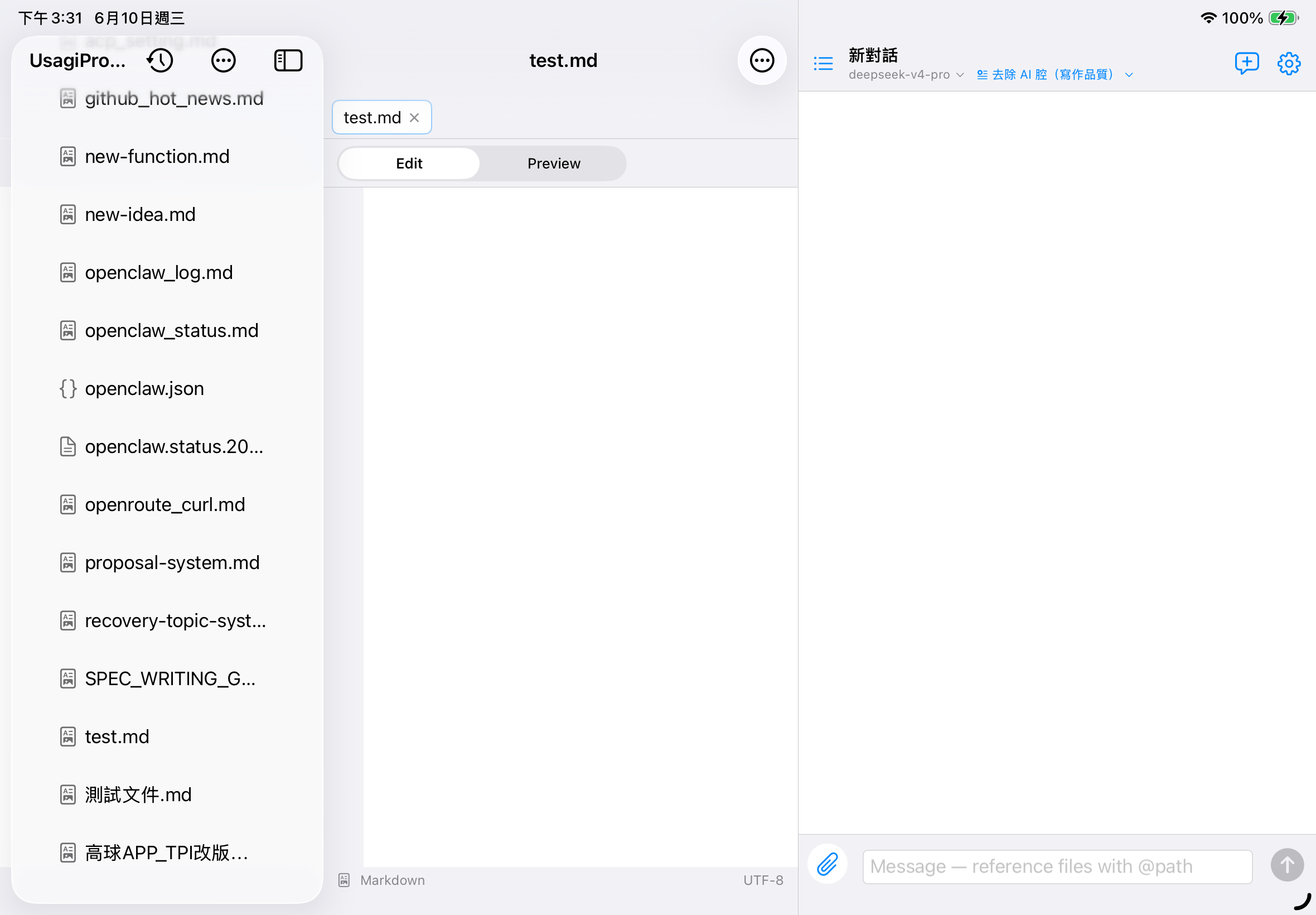
- Thread list (≡)
- Switch between past conversations or delete them
- Title
- Auto-named from the first 20 characters of the first message
- Model picker
- Switch which LLM model to use
- ⊕ menu
- Start a new conversation / reset the current one
- ⚙ Settings
- Jump straight to the settings page
6.2 Sending a message
Type a message in the input box. Use @file-path to reference a file's content from the workspace (e.g. @notes.md). The AI sees that file's full content for this turn.
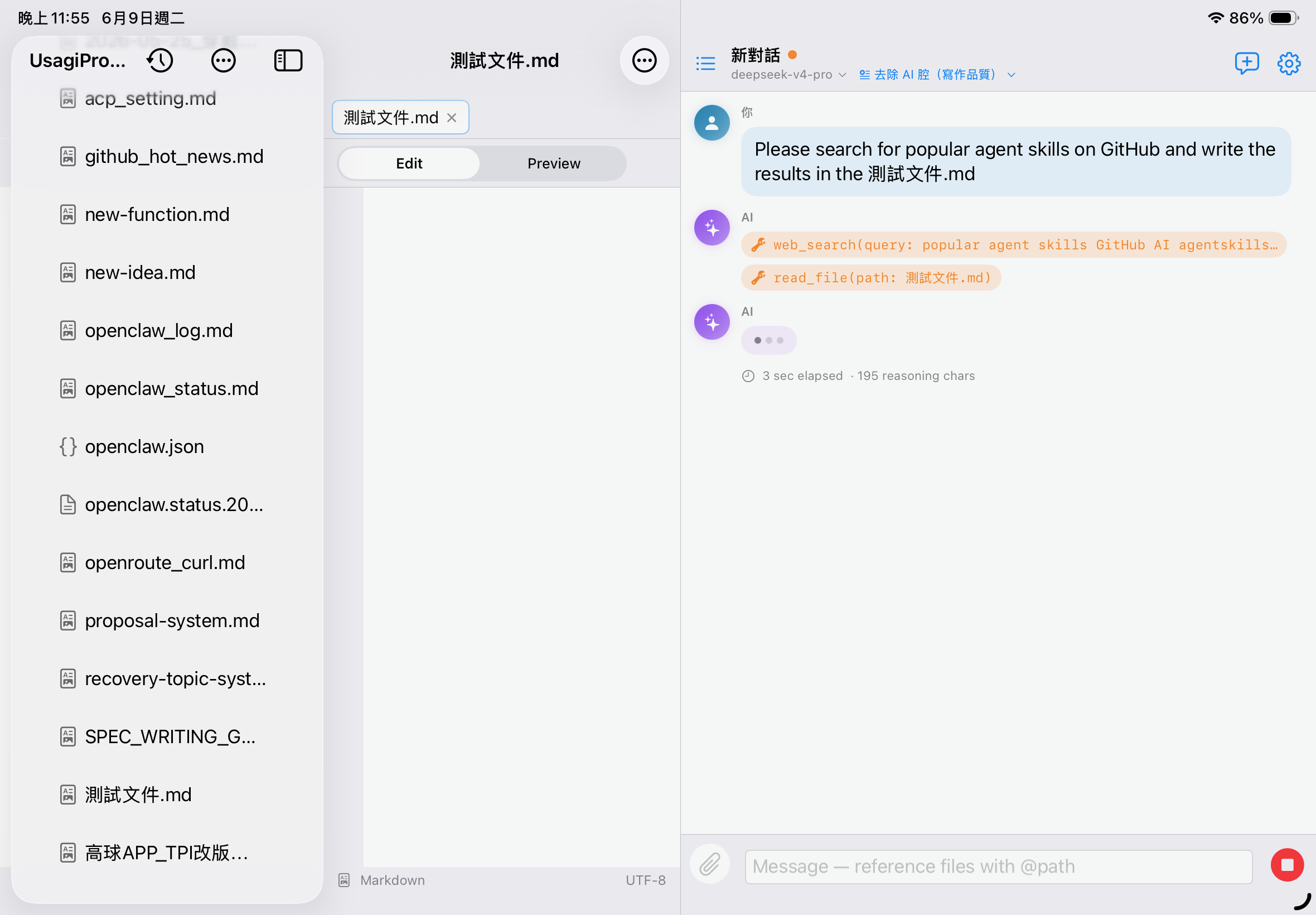
6.3 Model selection
Tap the model chip at the top to see all available models for the current profile. The app suggests a suitable model based on the message type (code / chat / long context / vision).
Tag colors: Code=blue / Vision=purple / Long Context=green / Chat=gray.
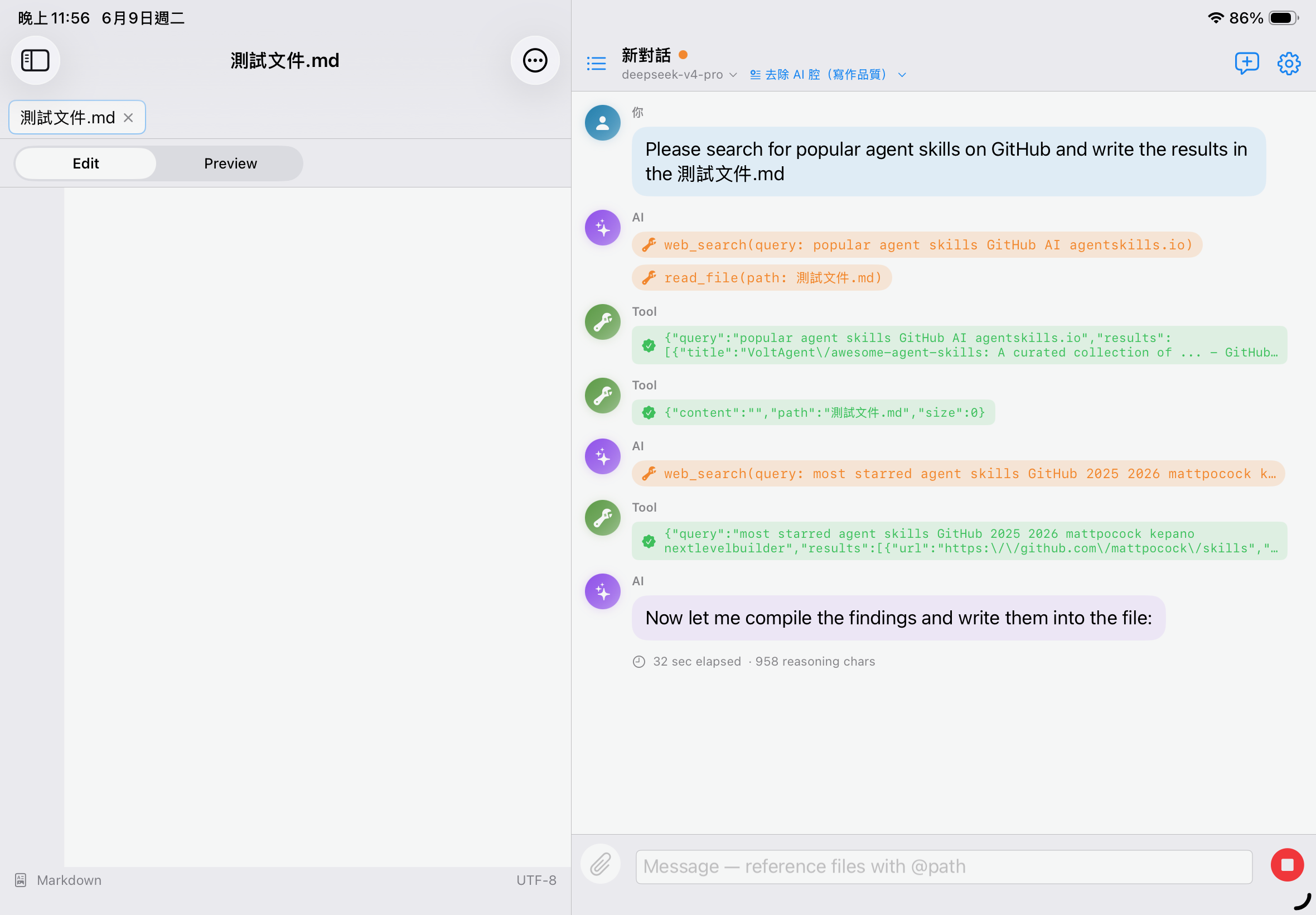
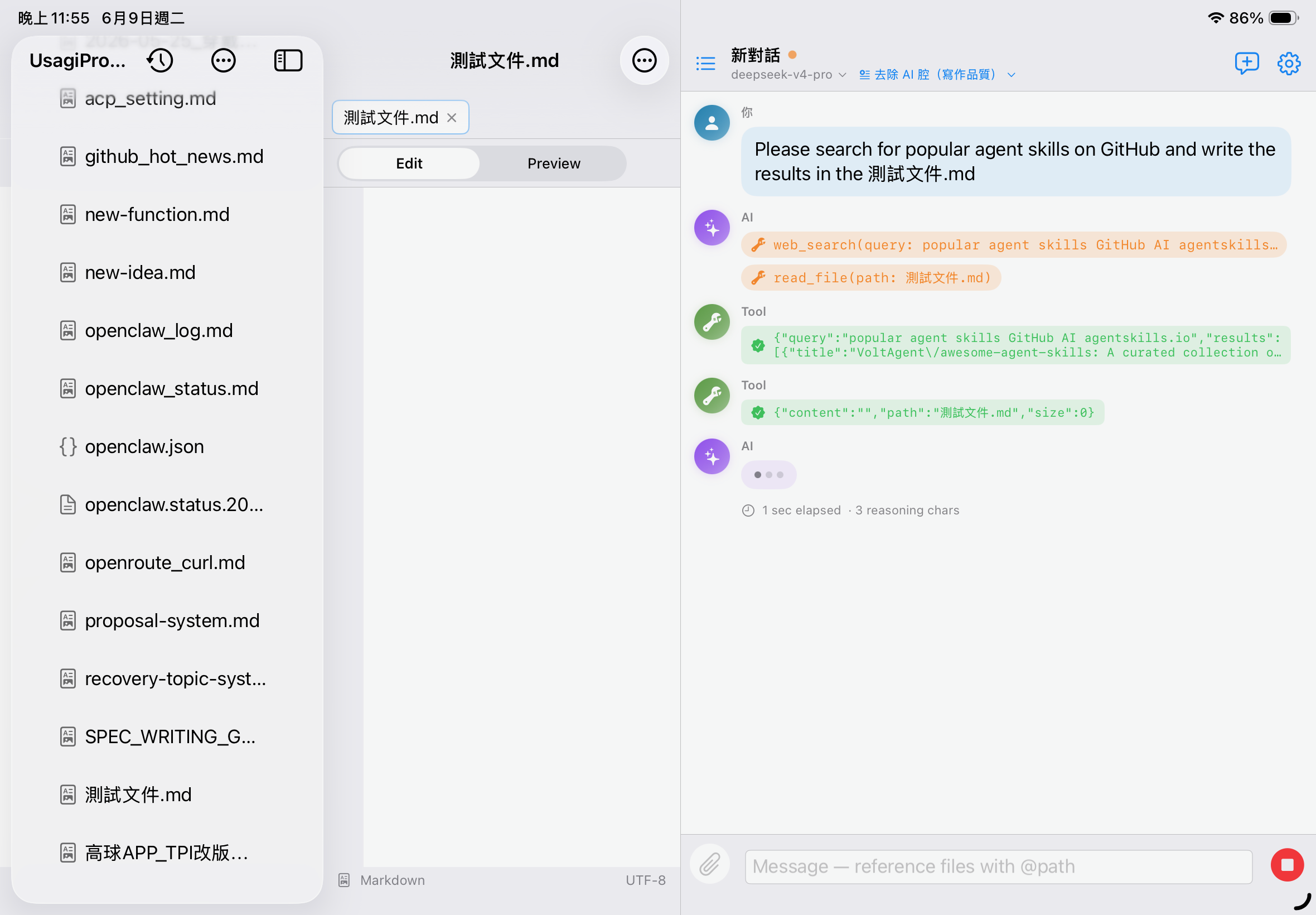
6.4 Tool-call display
When the AI calls a tool (read file, write file, list directory, search, web search), an orange wrench chip appears in the message. Tool results are shown as a green seal chip.
6.5 Managing conversations
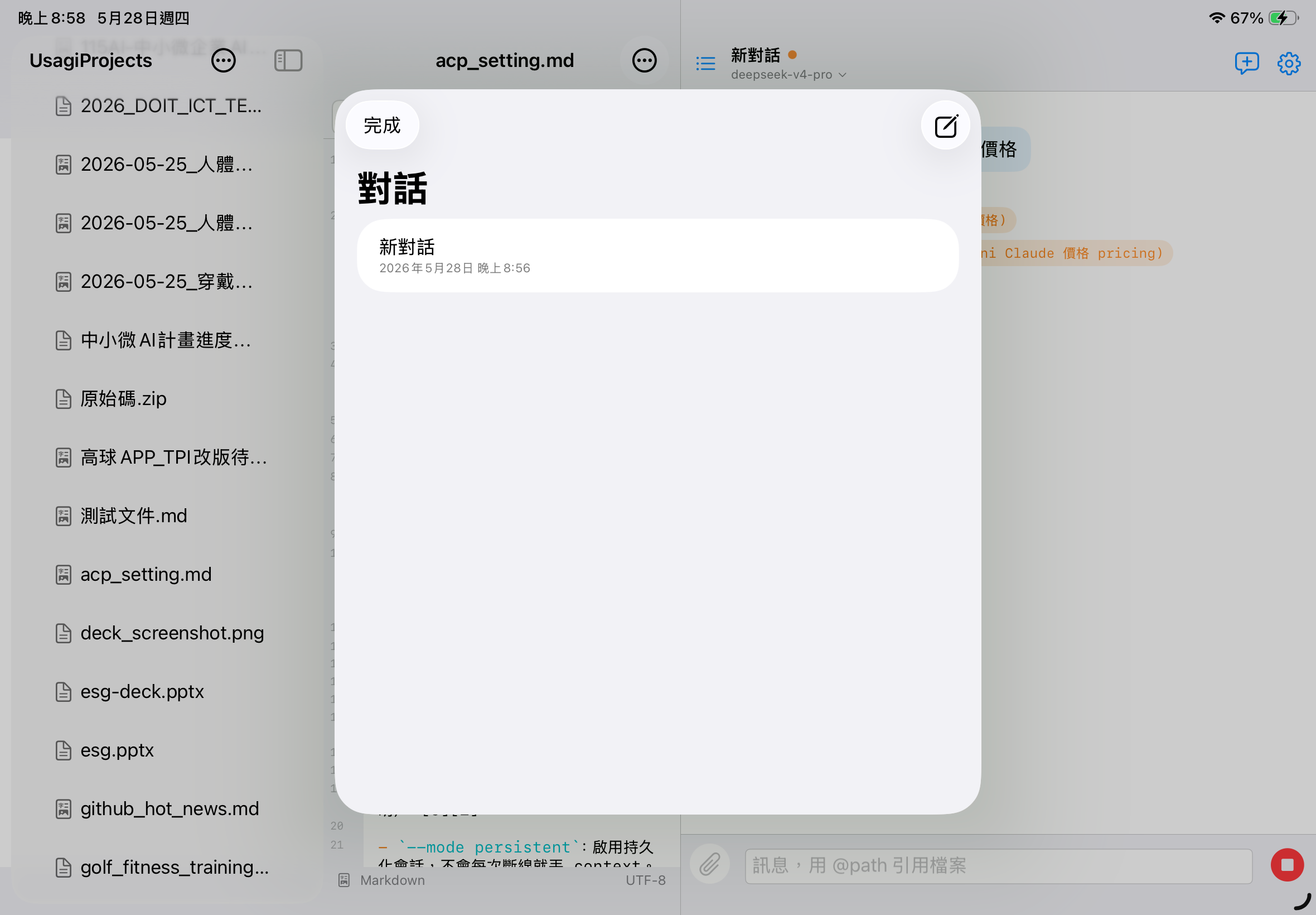
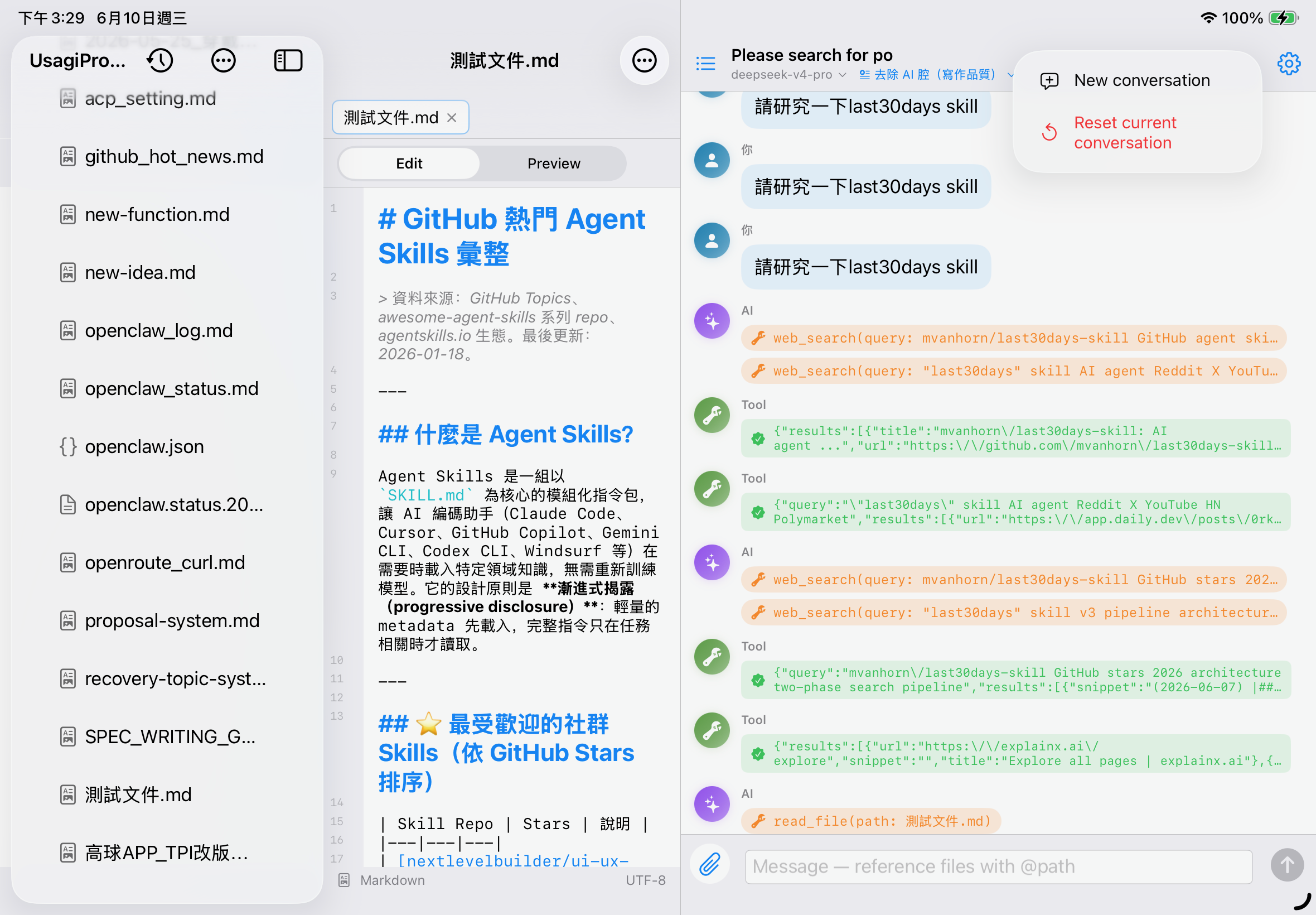
- Start a new conversation: keeps the old thread, opens a fresh one
- Reset the current conversation: deletes the current thread and opens a new one (a clean slate)
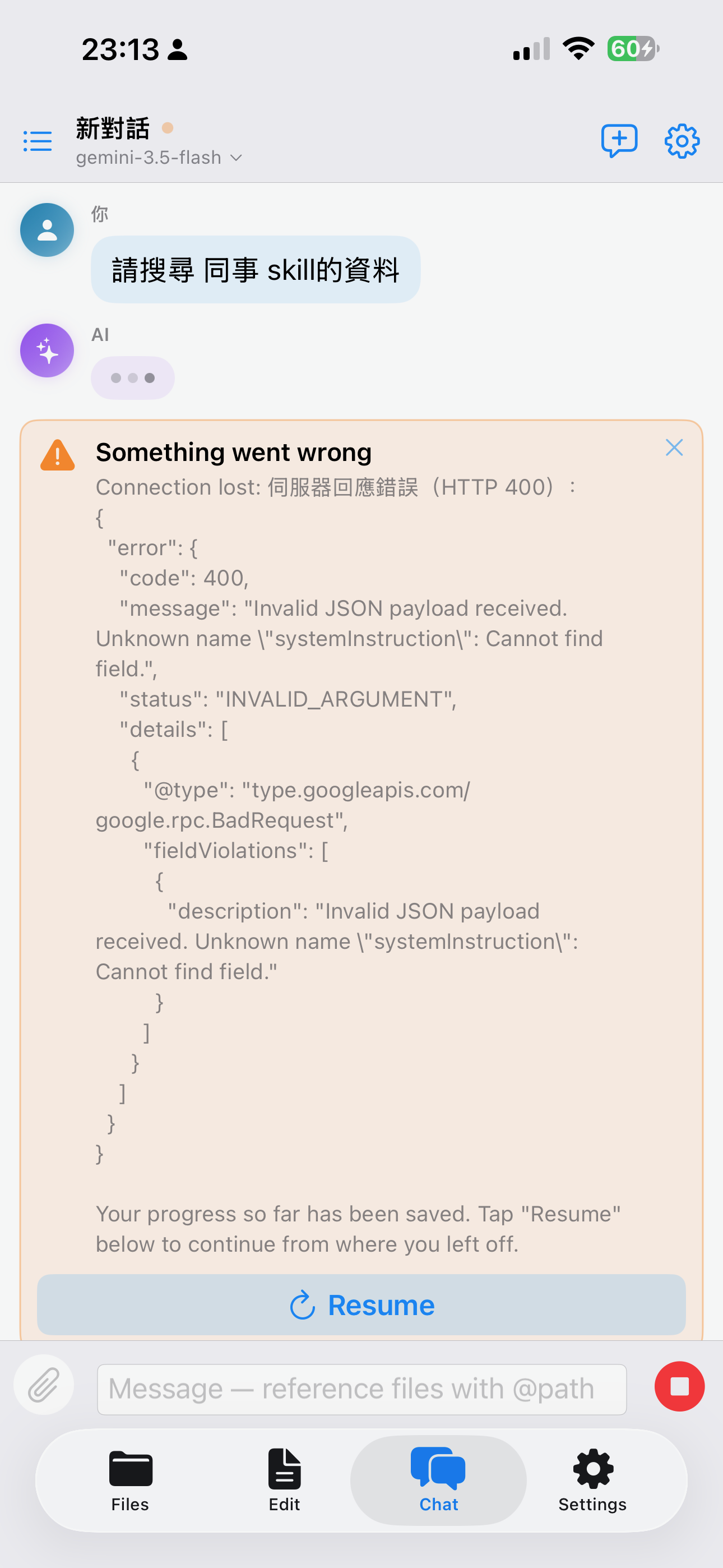
6.6 Error messages
If the AI endpoint returns an error (wrong API key, nonexistent model, tool calling unsupported, etc.), an orange banner shows the specific error message.
7. Prompt Library (AI Instructions)
The Prompt Library lets you create multiple "system prompt presets" and set one as globally active. The active instruction is automatically prepended to the start of every conversation, used to raise output quality, reduce hallucination, or lock in a particular writing / coding style.
7.1 Opening & switching
- Manage: Settings → Prompt Library (AI Instructions)
- Switch any time: the 📋 Current Prompt small menu next to the model name in the chat header — switch or turn it off without entering Settings
- Choose "No custom instruction" to turn it off (behaves like the old version)
7.2 Creating your own prompt
- Settings → Prompt Library → "+" at the top-right → "New"
- Fill in the name and instruction body → Save
- Tap it in the list to make it active (a checkmark appears)
7.3 Importing from GitHub
"+" at the top-right → "Import from GitHub", paste a github.com/.../blob/... or raw.githubusercontent.com link. The app automatically converts it to a raw link, downloads and previews it, and after you confirm, "Add & Activate".
7.4 The built-in "Recommended Skills" catalog
Prompt Library → "Browse Recommended Skills" offers 10 curated uses. Each can have its alias edited first (pre-filled by default), then downloaded by your device from GitHub on demand. Already-downloaded ones show a reload icon; re-downloading asks whether to overwrite.
| Alias (default) | Purpose / highlights | Source |
|---|---|---|
| Karpathy coding style | Andrej Karpathy–style coding guidelines; a popular coding skill. | Source ↗ |
| Avoid AI writing (writing quality) | Detects and rewrites common "AI-ish" phrasing and sentence patterns to read more naturally. | Source ↗ |
| Content research writing | Researches the topic first, then produces structured, citable content. | Source ↗ |
| Brainstorming → design | Systematically expands ideas into an actionable design. | Source ↗ |
| Writing implementation plans (spec / PRD) | Produces a detailed, delegable implementation plan before any coding — ideal for specs / PRDs. | Source ↗ |
| Contract & proposal writing | Consultant / business-grade contract and proposal structure and wording — ideal for sales proposals. | Source ↗ |
| Presentation building (PPTX) | Anthropic's official presentation-building skill; helps plan slide content. | Source ↗ |
| Test-driven development (TDD) | Develop with test-first discipline. | Source ↗ |
| Internal communications | Write clear, tactful internal communications and announcements. | Source ↗ |
| Lead research (sales) | Research and organize prospects / leads for sales. | Source ↗ |
8. Diff Approval Flow
When the AI wants to modify a file it never writes directly — instead it shows a Diff card for you to review.
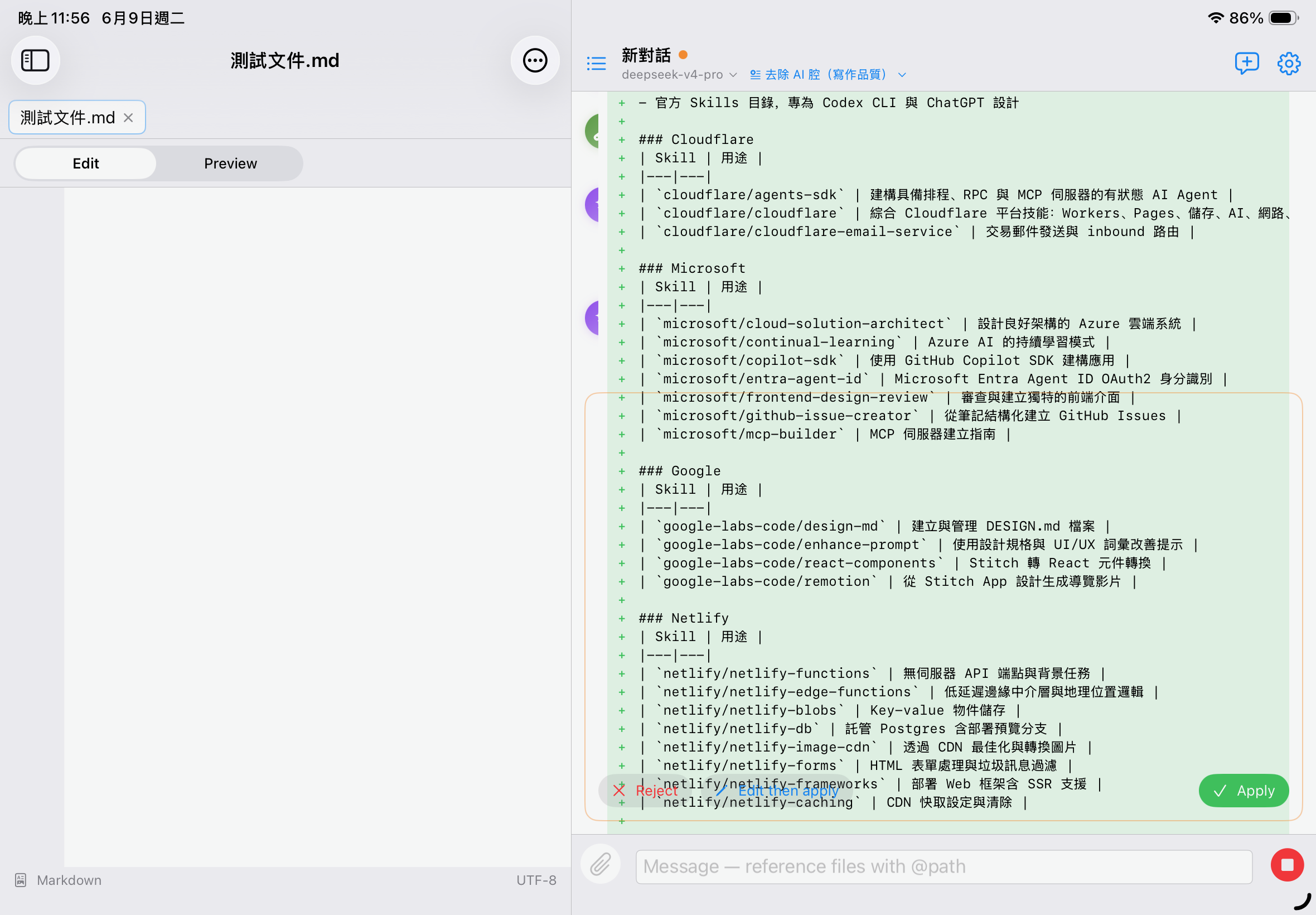
Three actions
- Apply (green) — writes to disk and auto-snapshots the original to
.aiide/snapshots/ - Reject (red) — doesn't write, tells the AI it was rejected, you can keep chatting
- Edit then apply (gray) — opens CodeTextView to manually tweak the AI's proposal, then tap Apply
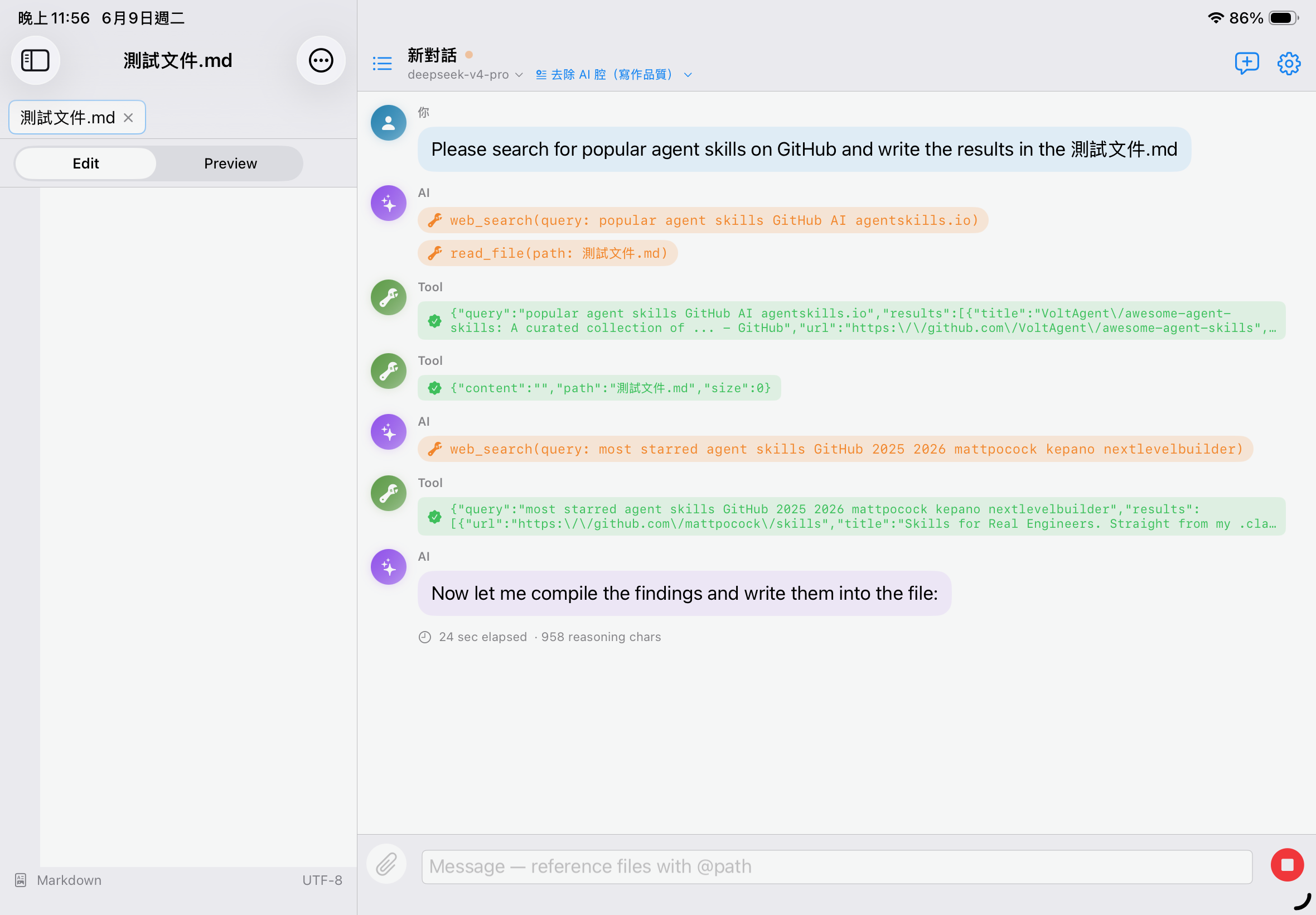
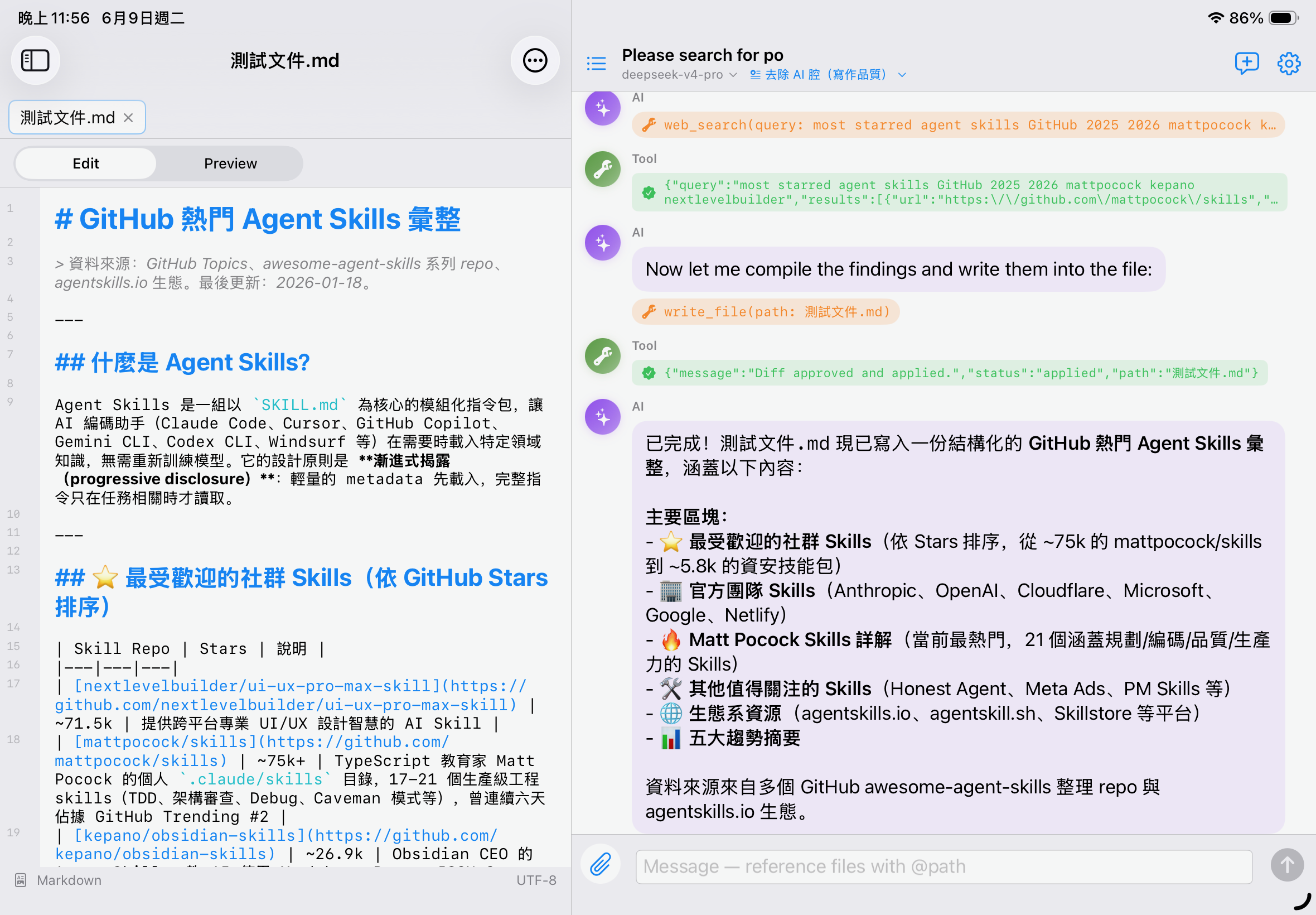
.aiide/snapshots/<ISO timestamp>_<filename>, retrievable any time from the Files app.
9. Version Control
Enable "Version Control" for any workspace to save its current state as individual versions (commits), then later review differences and restore a single file or an entire version. This is a local, opt-in feature — it does nothing unless enabled.
.git in the cloud gets corrupted" problem. iCloud only ever shows the version you currently have checked out.
9.1 Enabling
- The 🕘 icon at the top-right of the Files tab → opens the Version Control screen
- On first use, tap "Enable Version Control" (it writes a small
.aiide/vcs.jsonmarker into the workspace, hidden by default)
9.2 Creating a version (commit)
- The "Uncommitted Changes" section lists files that differ from the latest version; the 🕘 icon also shows a badge with the uncommitted count
- Tap "Create Version" → check the files to include, fill in a message → Create
9.3 Reviewing diffs & restoring
- In "History", tap a version → tap a file → see what changed in that version (red/green diff vs. the previous version)
- Restore a single file: reverts that file to this version's content
- Restore an entire version: overwrites the workspace with this version; if there are extra files it asks whether to delete them too
- A restore point is automatically created before any restore, so you can change your mind
9.4 Auto-commit after AI approval
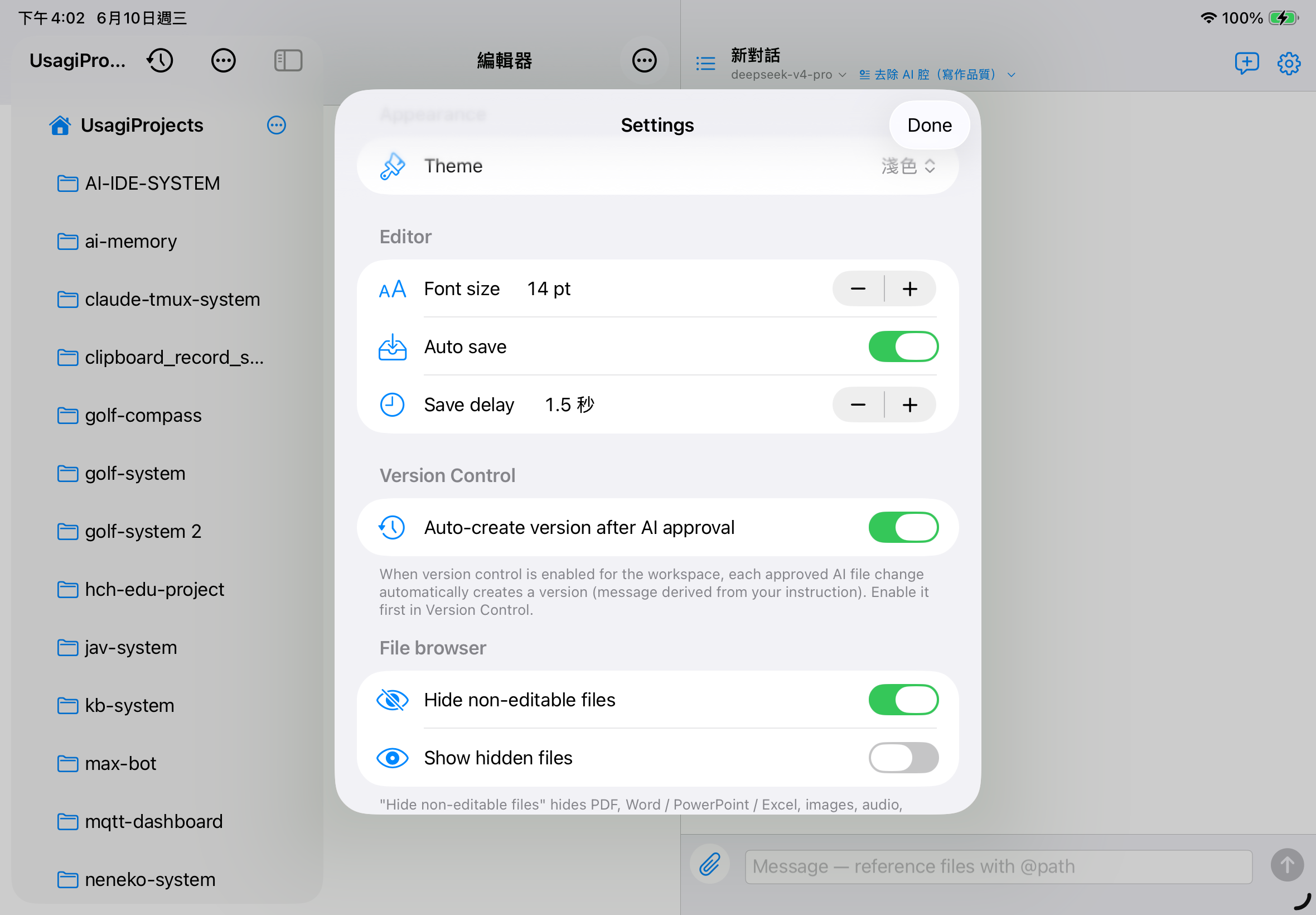
Turn on "Auto-create a version after AI approval" in Settings → Version Control to automatically commit a version each time you approve an AI file change (the message is taken from your instruction). Off by default.
9.5 Cleanup
On the Version screen, top-left ⋯ → "Clean up unused version data" frees blocks no longer referenced by any version. Version data is content-deduplicated + compressed, so it's usually very compact.
10. Uploading Files
The paperclip icon on the left of the chat input box uploads files from four sources:
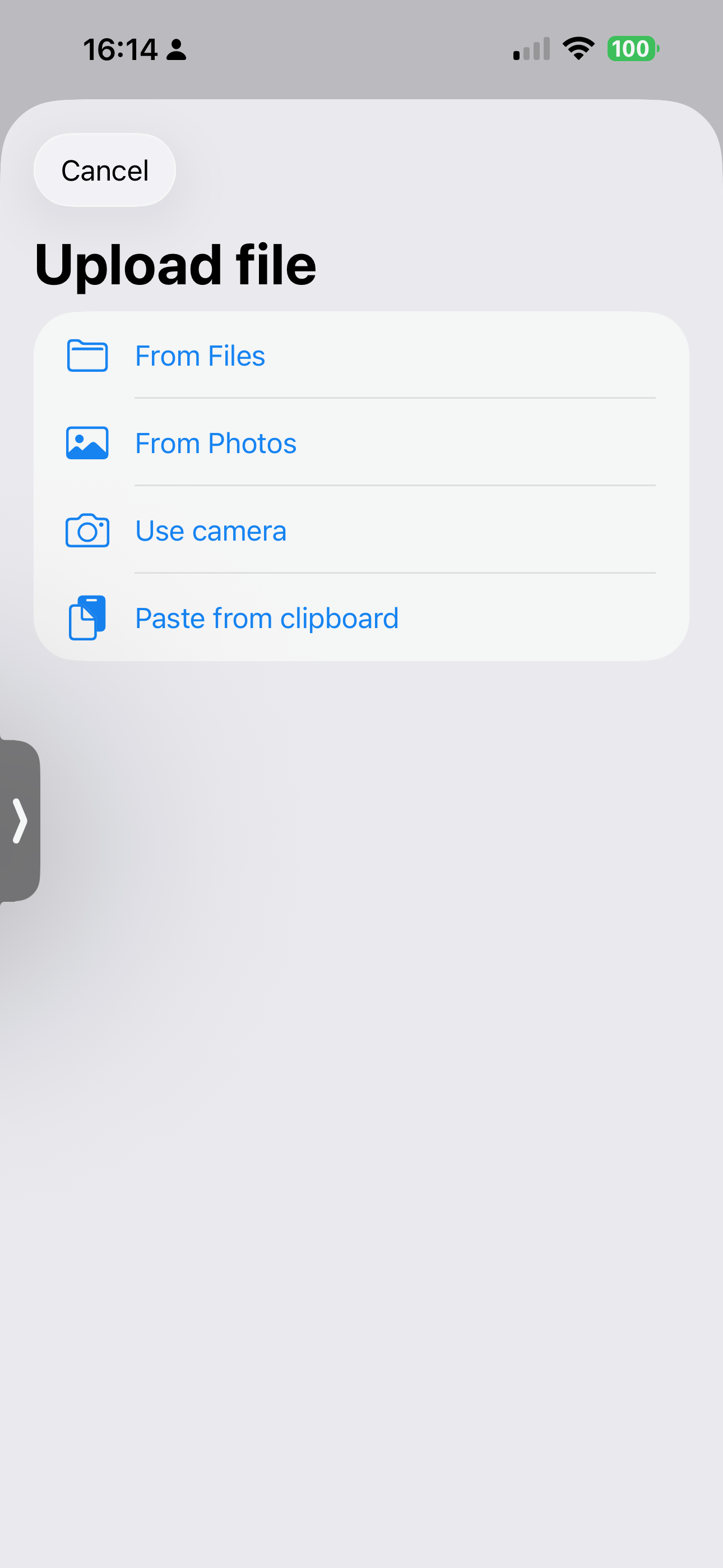
- Upload from Files
- The iOS Files app, any location
- Upload from Photos
- PhotosPicker — images are fed directly to Vision models
- Take a photo
- Shoot and upload on the spot
- Paste from clipboard
- Clipboard is an image → attach the image; is text → insert into the input box
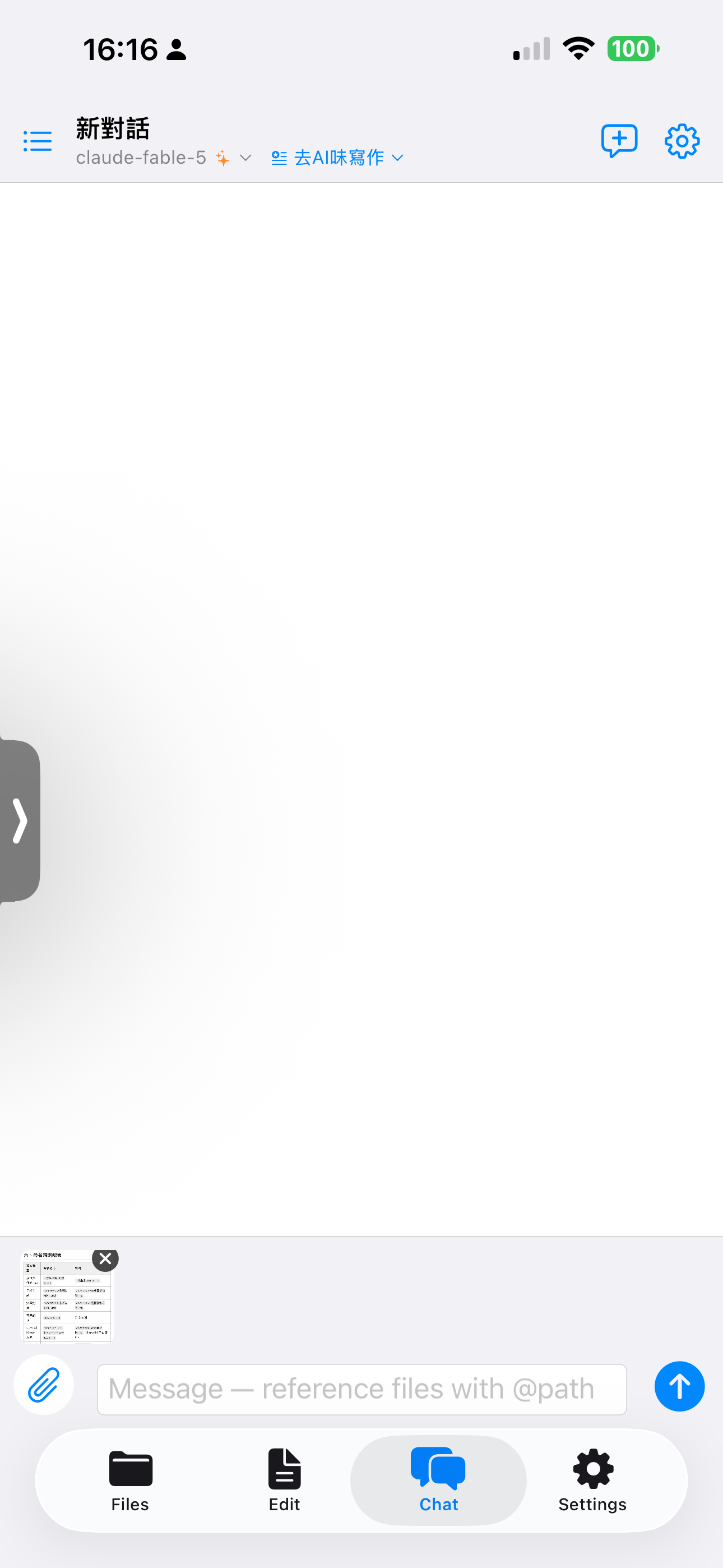
Image attachments
Images appear above the input box and can be removed individually. When sent, they go to the AI along with the message (Vision models see the image directly; other models ignore it).
Filename conflicts
Uploaded files land in the workspace's uploads/ subfolder. On a name conflict you can choose auto-rename, overwrite, or cancel.
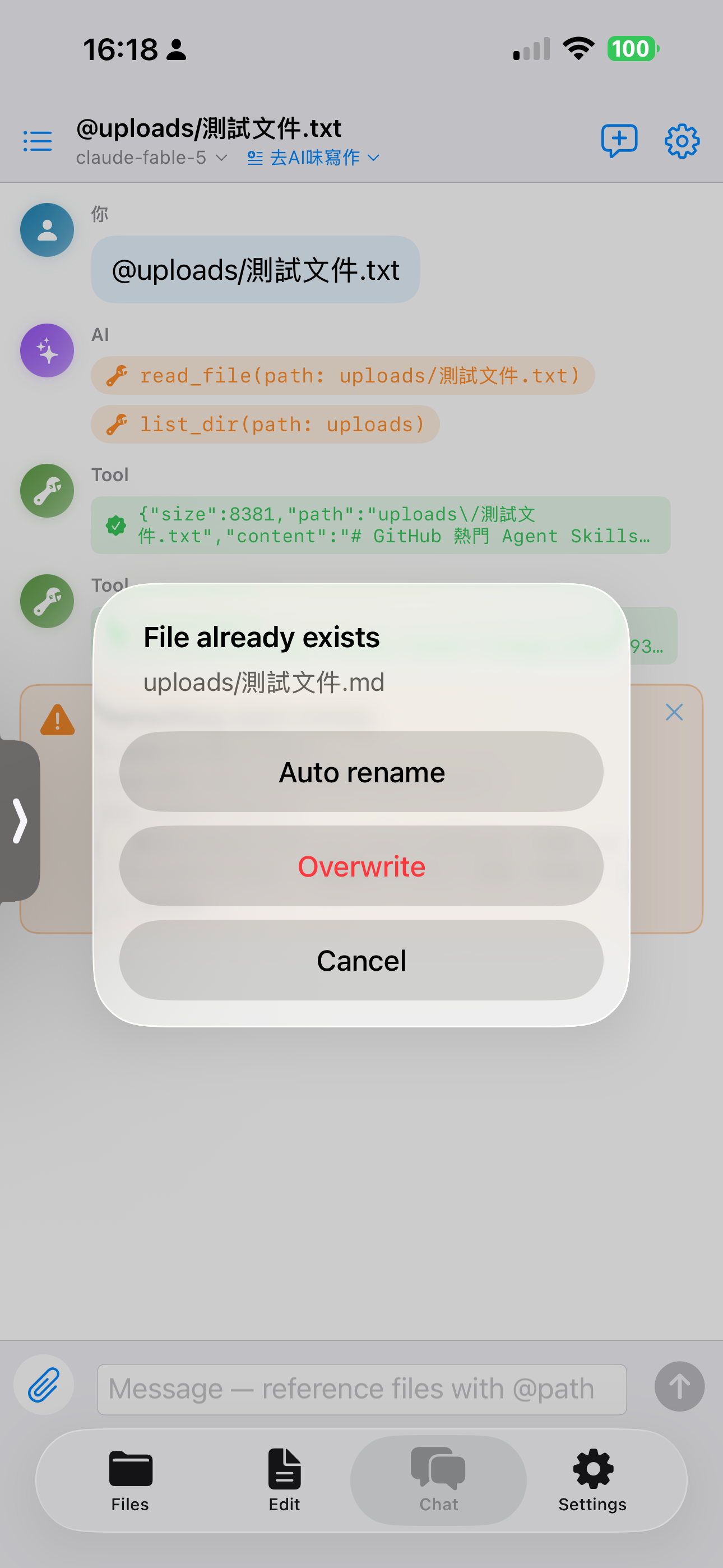
Automatic PDF / DOCX transcription
Uploading a PDF or Word document automatically produces a .txt transcript, and the input box auto-@-references it (so the LLM reads plain text and saves tokens). The original is kept in uploads/ as well.
11. The web_search Tool
Lets the AI search the web during a conversation. Three backends to choose from:
- Brave Search — 2,000 calls / month free
- Tavily — 1,000 calls / month free, designed for LLMs
- Perplexity Search — $5 / month free credit
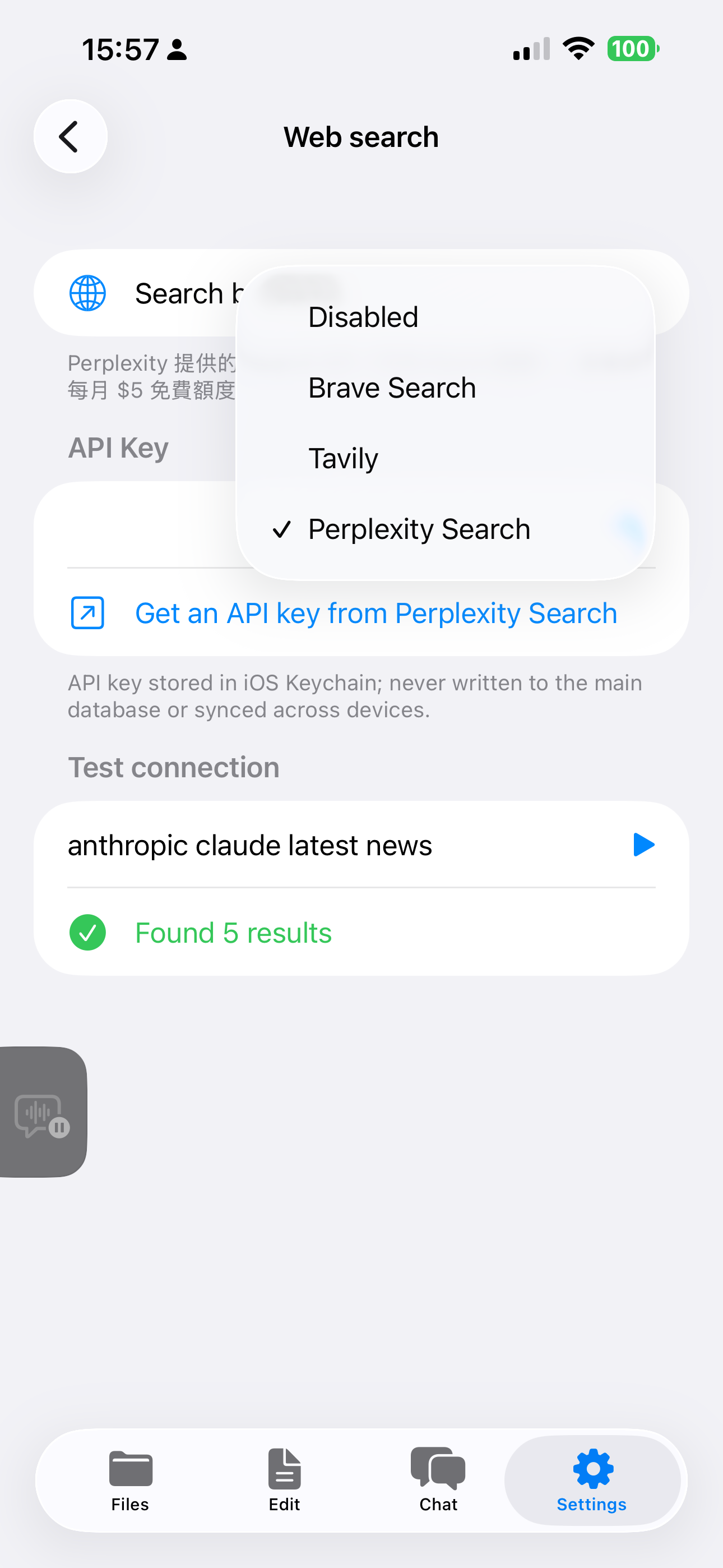
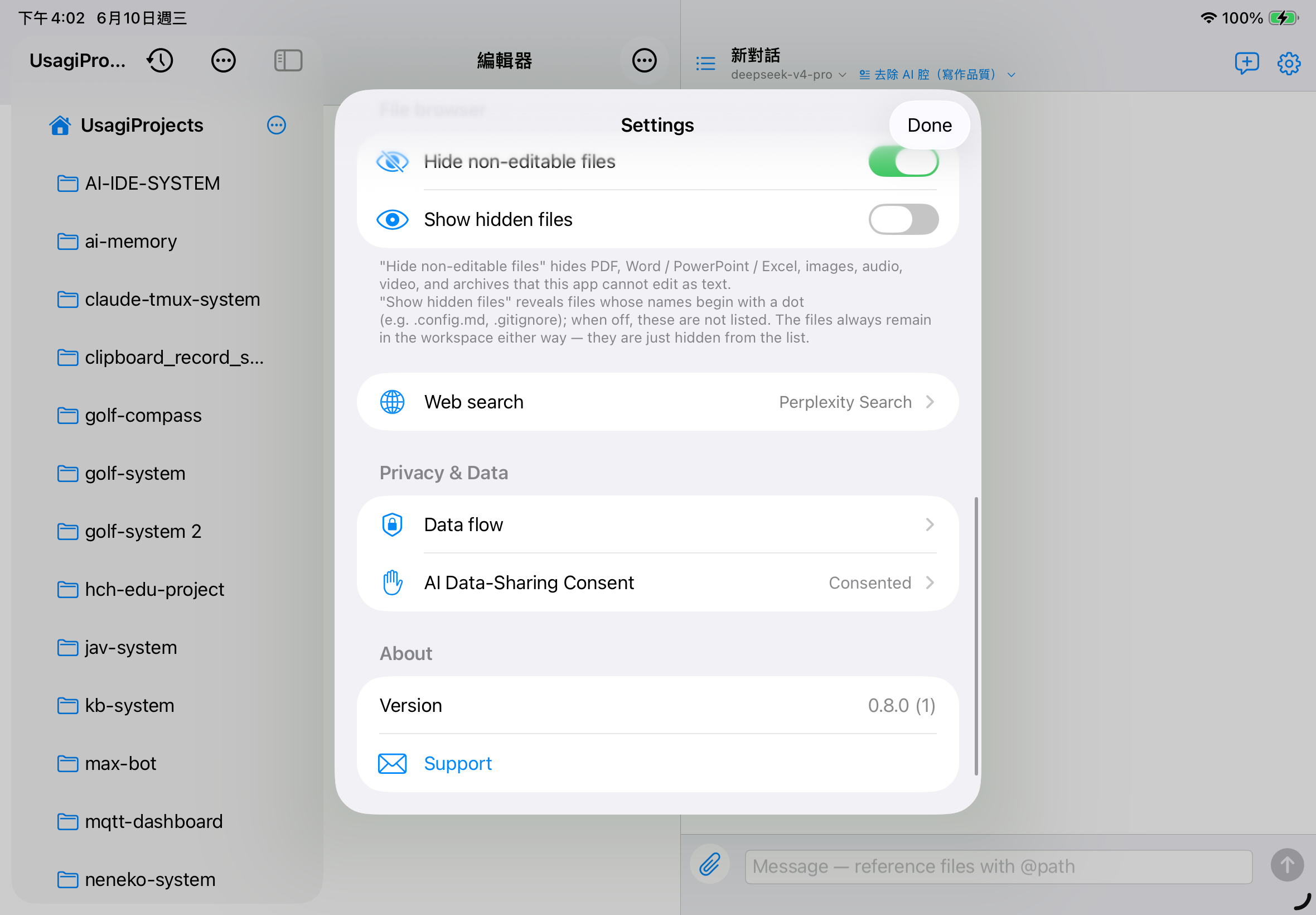
- Settings → Web Search
- Pick a backend → tap "Get API Key" to register on that site
- Paste the key, tap ▶ to test
- Back in chat, the AI can call the
web_searchtool
12. App Settings
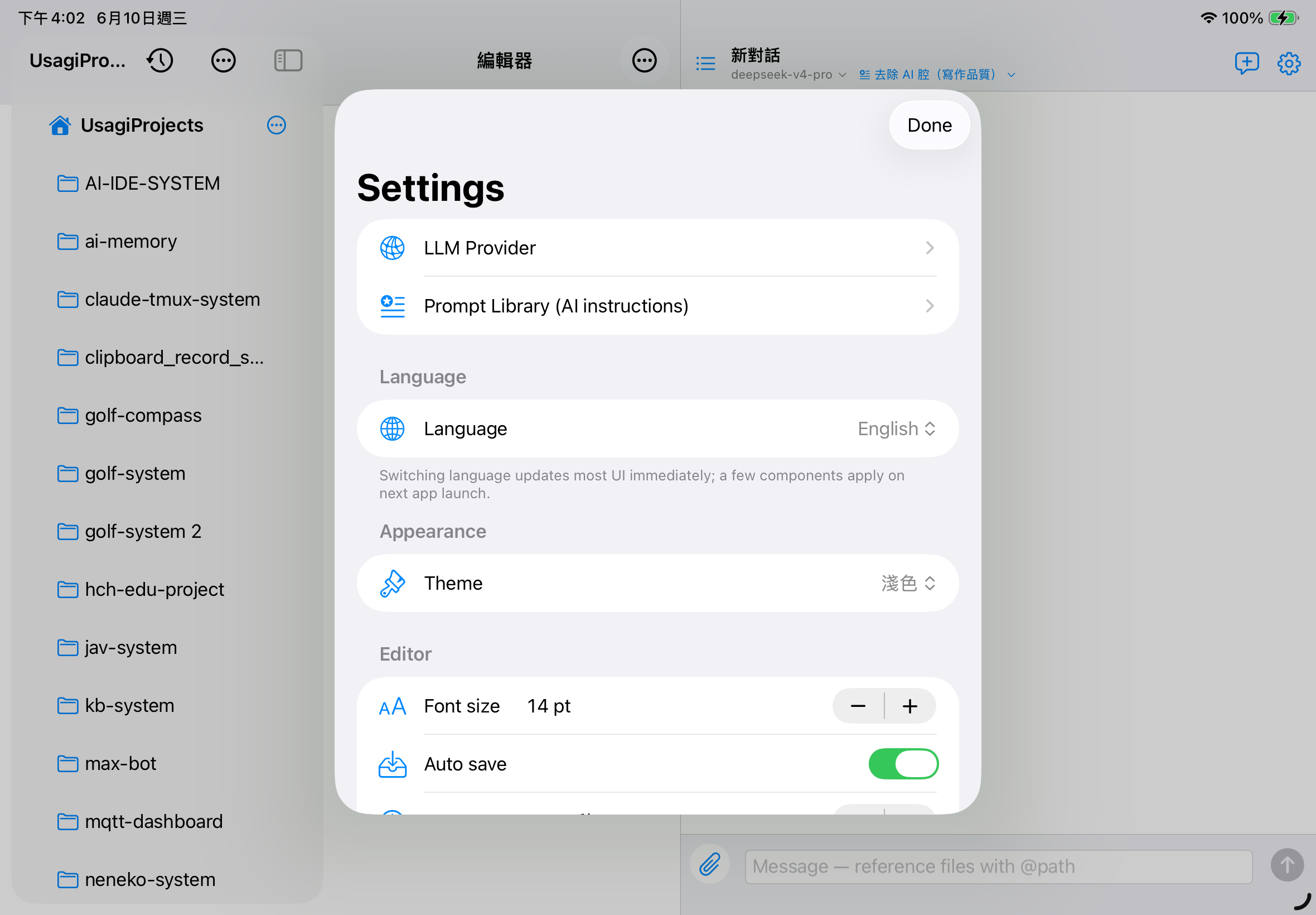
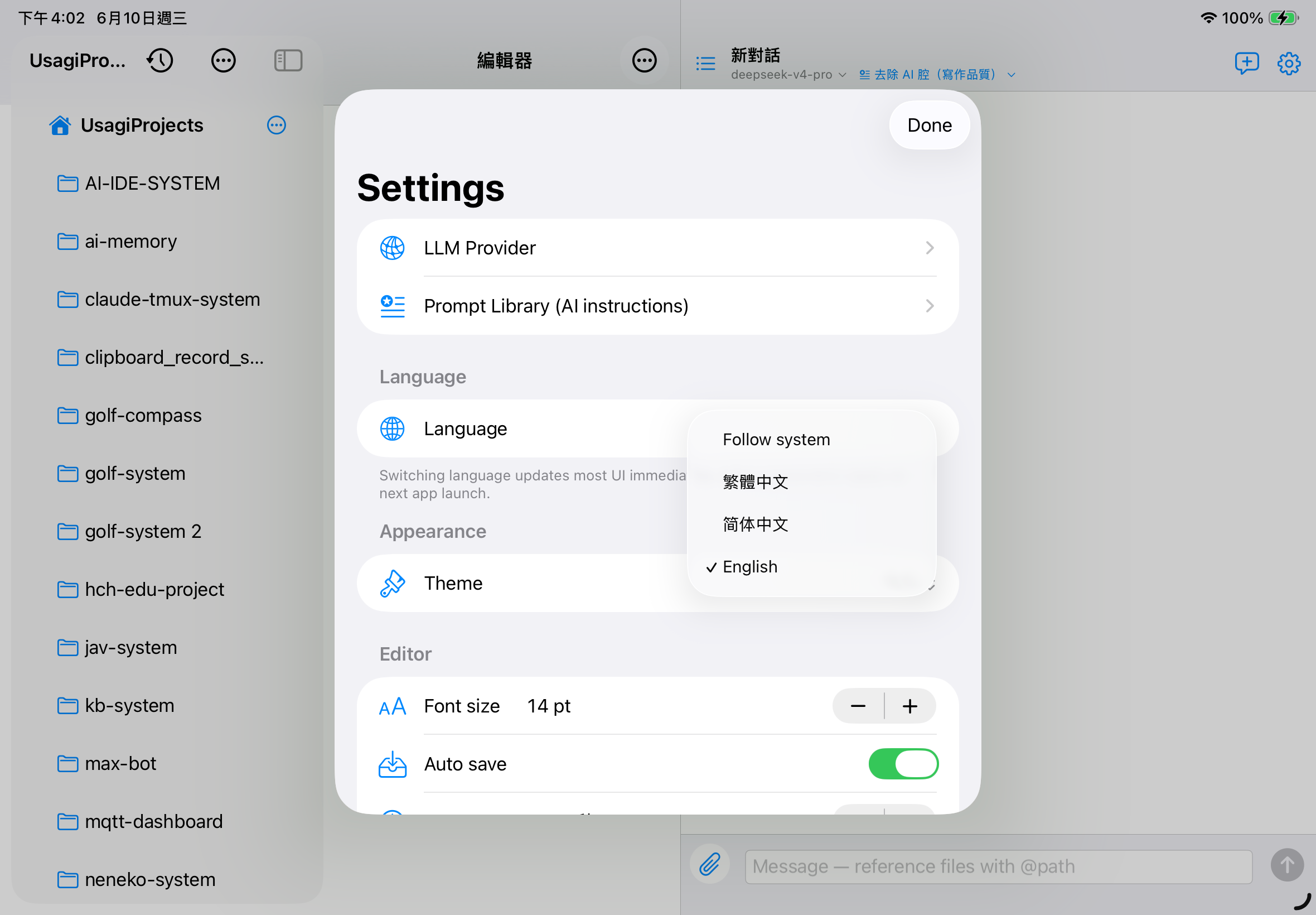
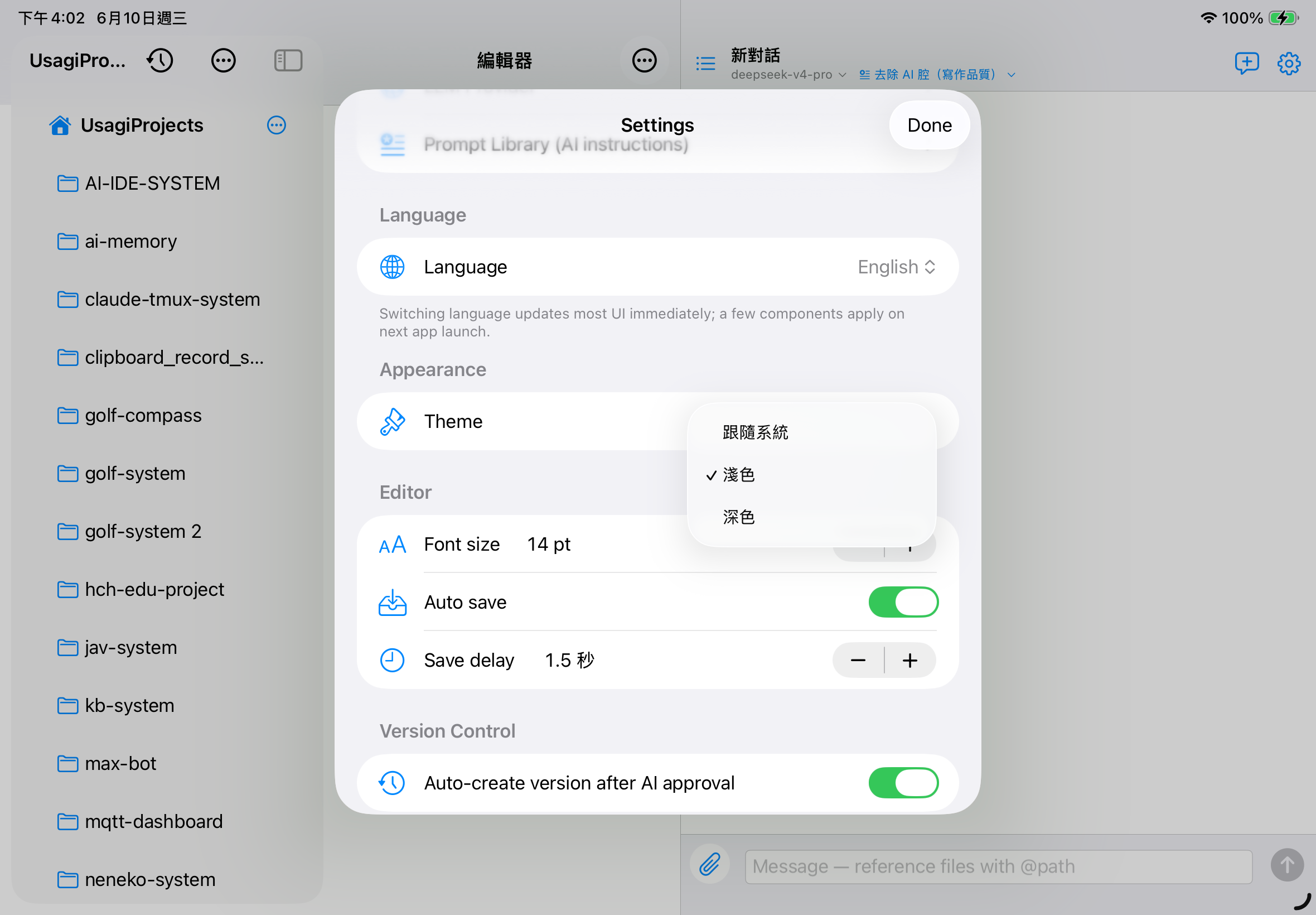
12.1 Language
Supports Follow System / Traditional Chinese / Simplified Chinese / English. Most UI text updates instantly after switching.
12.2 Appearance
Follow System / Force Light / Force Dark.
12.3 Editor preferences
- Font size: 10–28 pt
- Auto-save: save 0.5–10 seconds after you stop typing
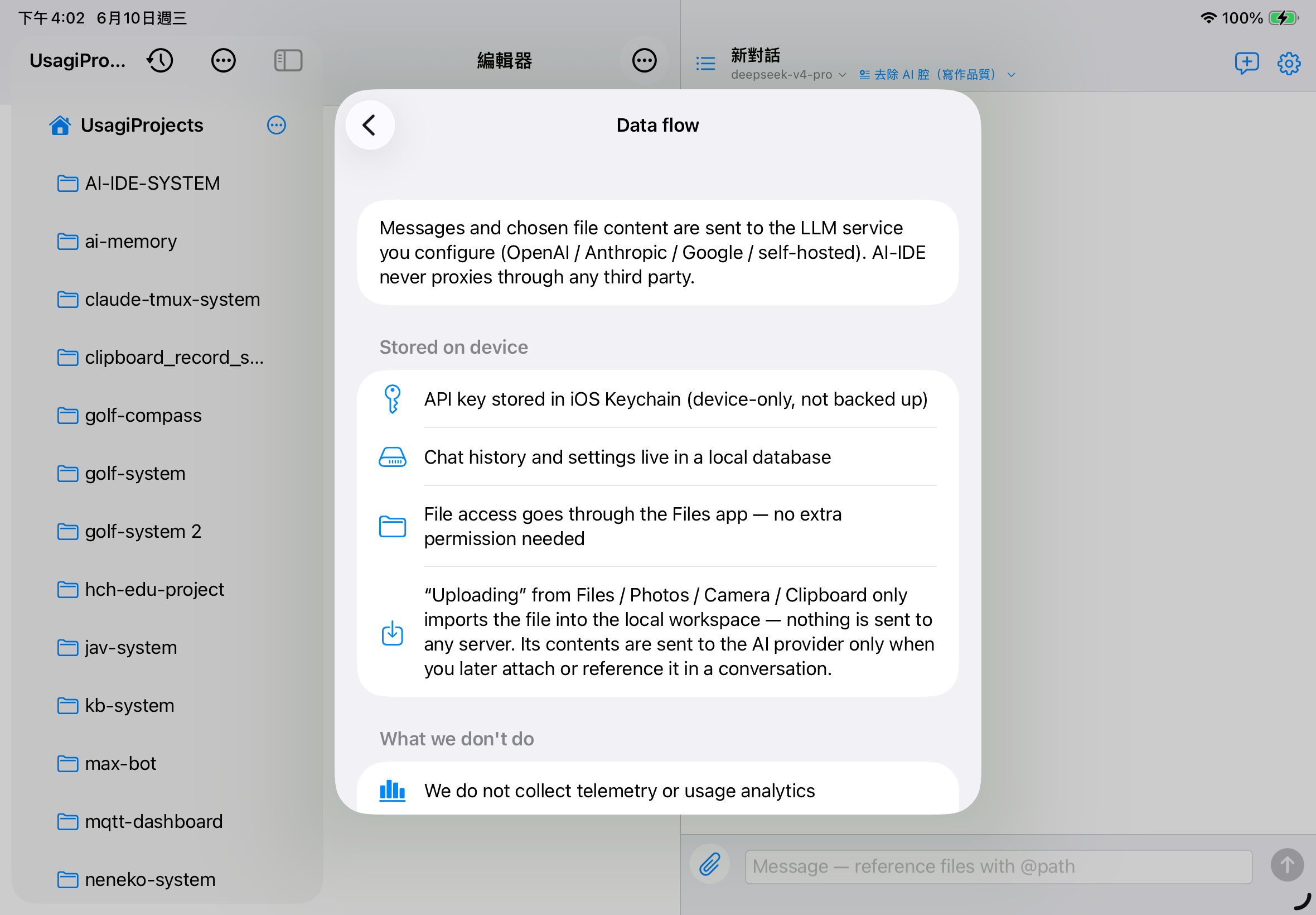
12.4 Data flow
Open "Data Flow Explanation" to see this app's concrete commitments about your data.
12.5 About
Version info and a technical support link (sportusagi@gmail.com).
13. iOS Integration
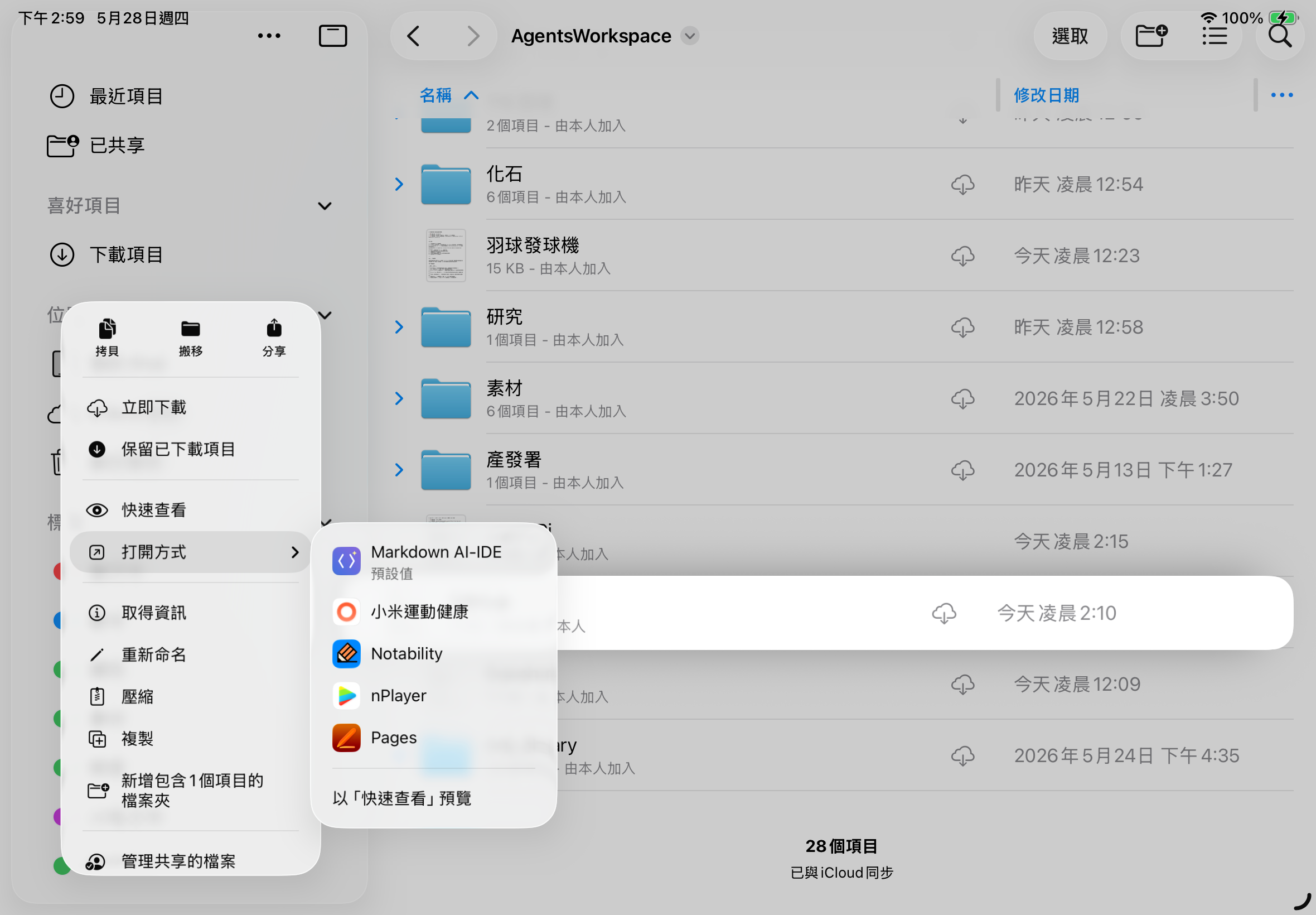
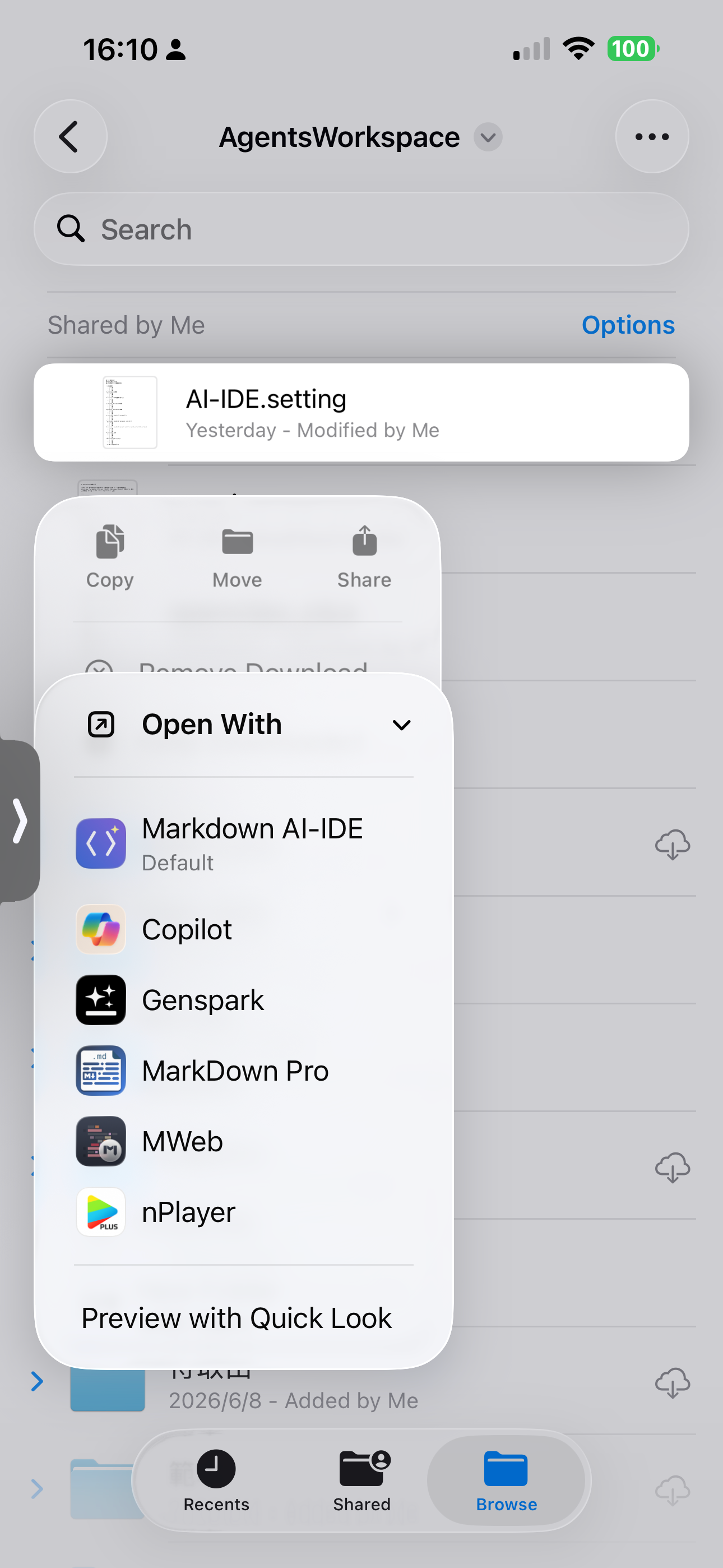
13.1 Set as the default .md editor
AI-IDE is registered as an app that can open Markdown, Plain Text, Source Code, JSON / YAML / XML and similar file types.
- Find a .md file in the iOS Files app
- Long-press → Share or Open With…
- Choose AI-IDE
- The file opens in the AI-IDE editor with an "External" status bar marker
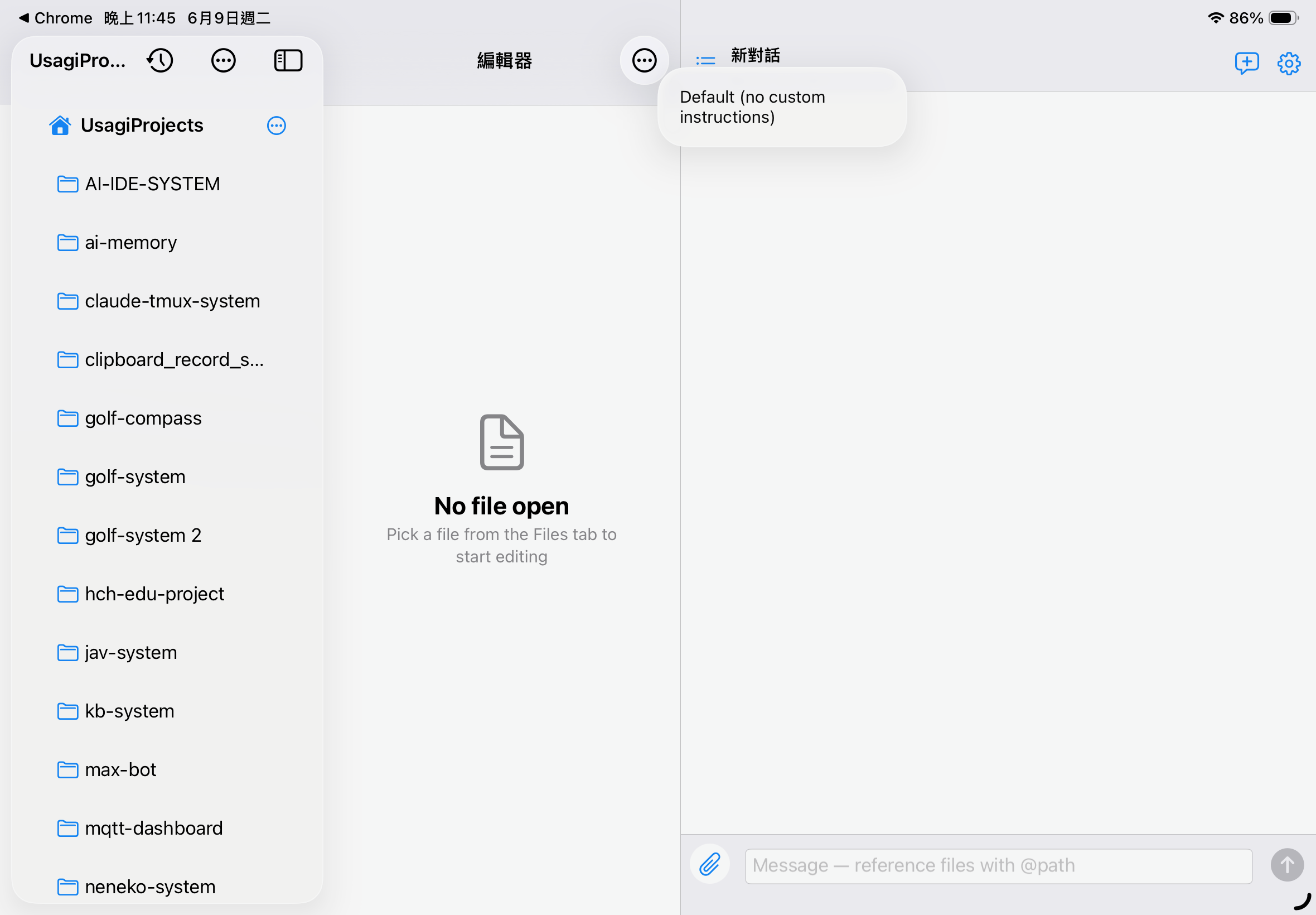
13.2 iPad Split View
iPad in landscape automatically expands to three columns: file tree / editor / chat. You can see all three panes at once.
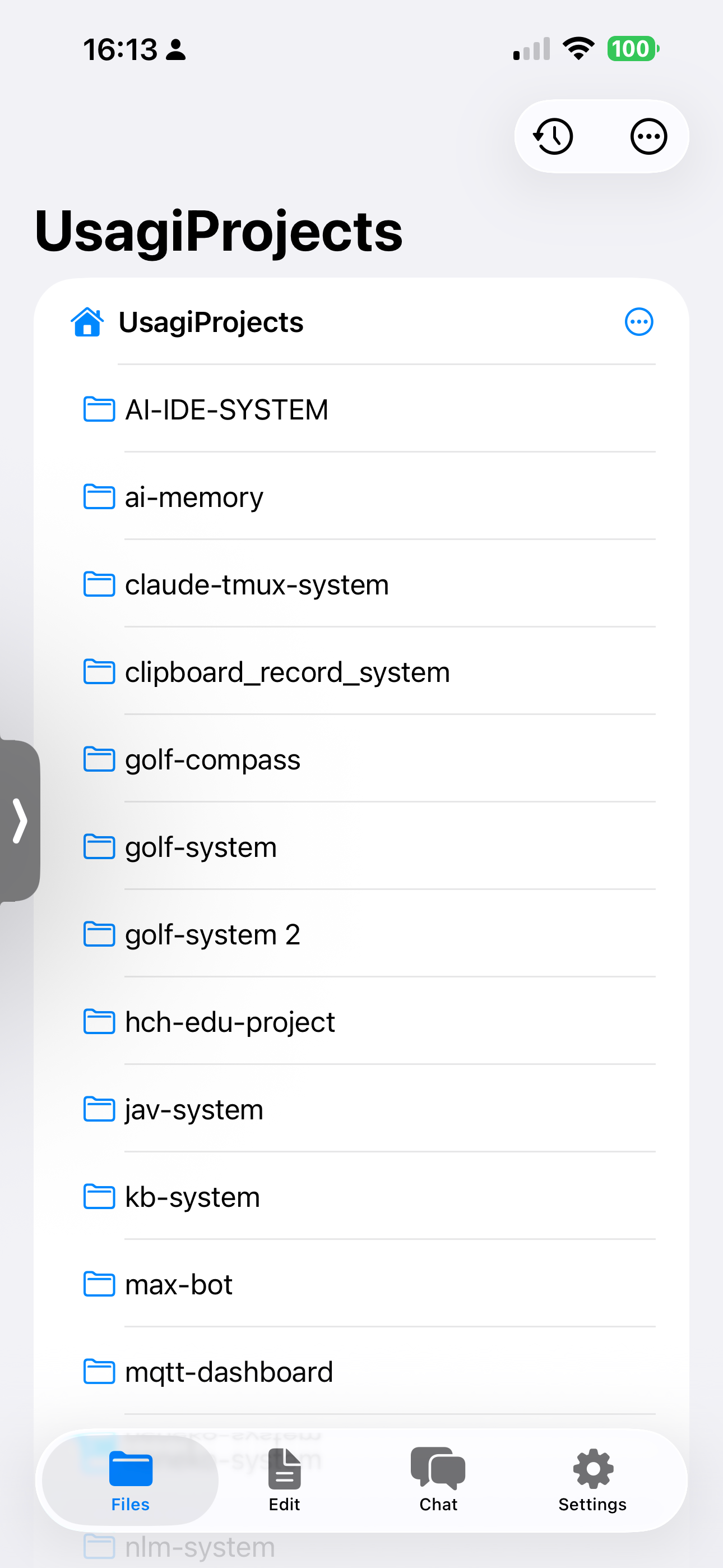
13.3 iPhone tabbed layout
iPhone uses a bottom tab bar: Files / Edit / Chat / Settings. Tapping a file auto-switches to the Edit tab; closing all tabs auto-switches back to the Files tab.
14. Keyboard Shortcuts
With an external keyboard on iPad (or iPhone Magic Keyboard) these shortcuts are available:
- ⌘ S
- Save the current file
- ⌘ P
- Quick open (type a filename to search across the workspace)
- ⌘ ,
- Open Settings
- ⌘ ⇧ N
- New conversation
- ⌘ ⏎
- Press Enter in the chat input to send
15. Privacy & Security
- API keys are stored in the iOS Keychain, available only on-device, and are not synced to other devices
- Conversation history and settings are stored in a local SwiftData database and can be deleted any time
- Before modifying a file, the AI always shows a Diff card; nothing is written until you Approve
- The original before each write is snapshotted to
.aiide/snapshots/ - This app does no telemetry / usage analytics whatsoever
- Outbound connections only target the LLM endpoints you configure yourself — no third-party proxy
16. Troubleshooting
"The AI endpoint returned no events"
Common causes:
- Base URL is mistyped
- API key is expired / invalid
- The model name doesn't exist at that provider
- The model doesn't support tool calling — try turning on "Disable tool calling" in the provider settings
Some text is still Chinese after switching to English
Most text updates instantly; a few system components (native alerts / pickers) need an app restart to apply.
Nothing happens after creating a new file
Confirm the workspace has write permission (an iCloud Drive sync conflict can also block writes). If it still fails, a specific error alert appears.
iPad multitasking is grayed out
Update to the latest app version (four-orientation support landed after v1.0.0).
The app is blank after closing all files
On iPhone it auto-switches back to the "Files" tab; if it's stuck, switch manually.